
Productlane changelog
Live Chat
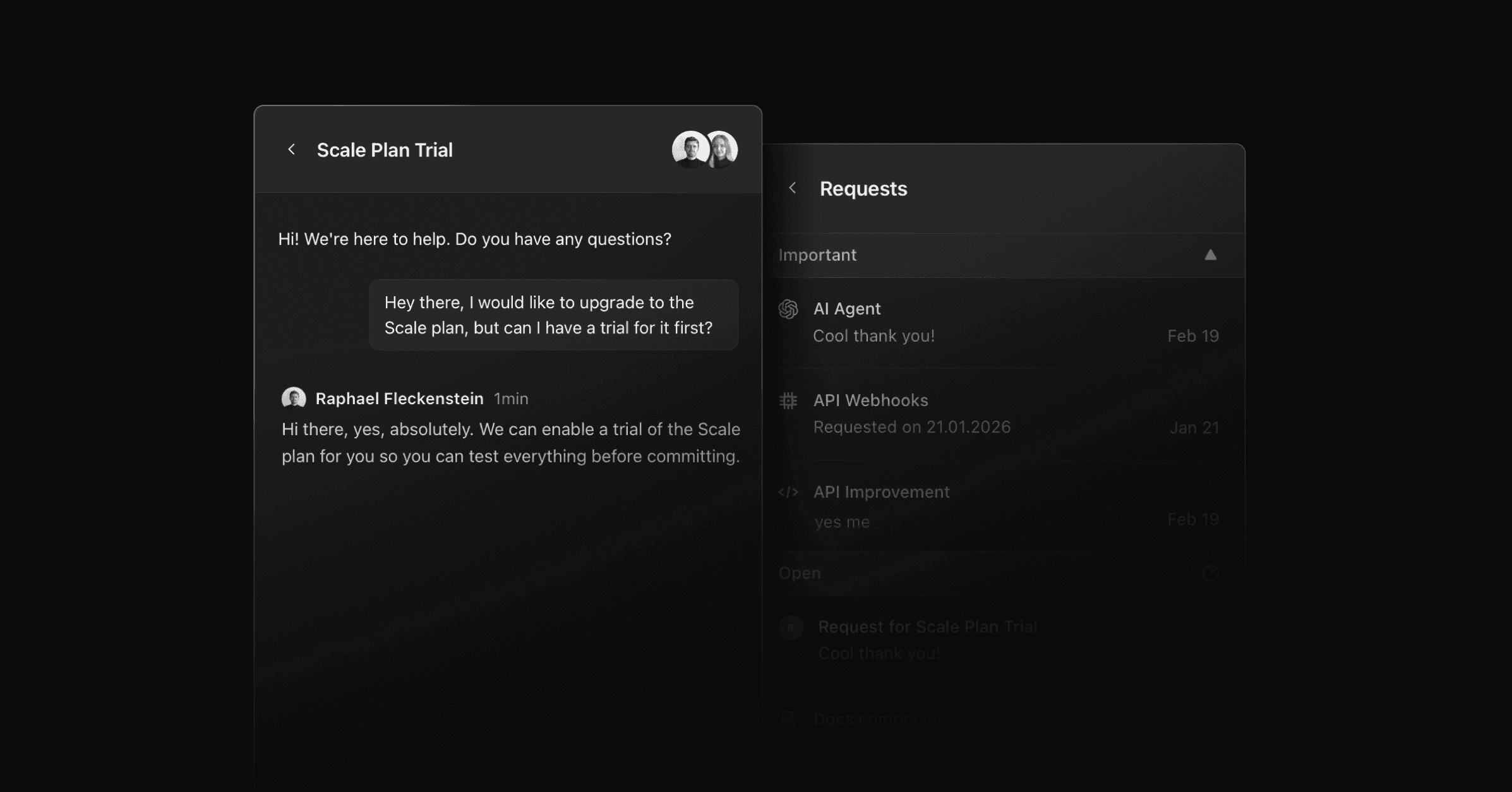
We’re excited to introduce Live Chat today. Talk to customers in real time, with unique capabilities: They won’t only see their past chats, but all associated Linear requests, so they can track and change their priority directly in the chat.
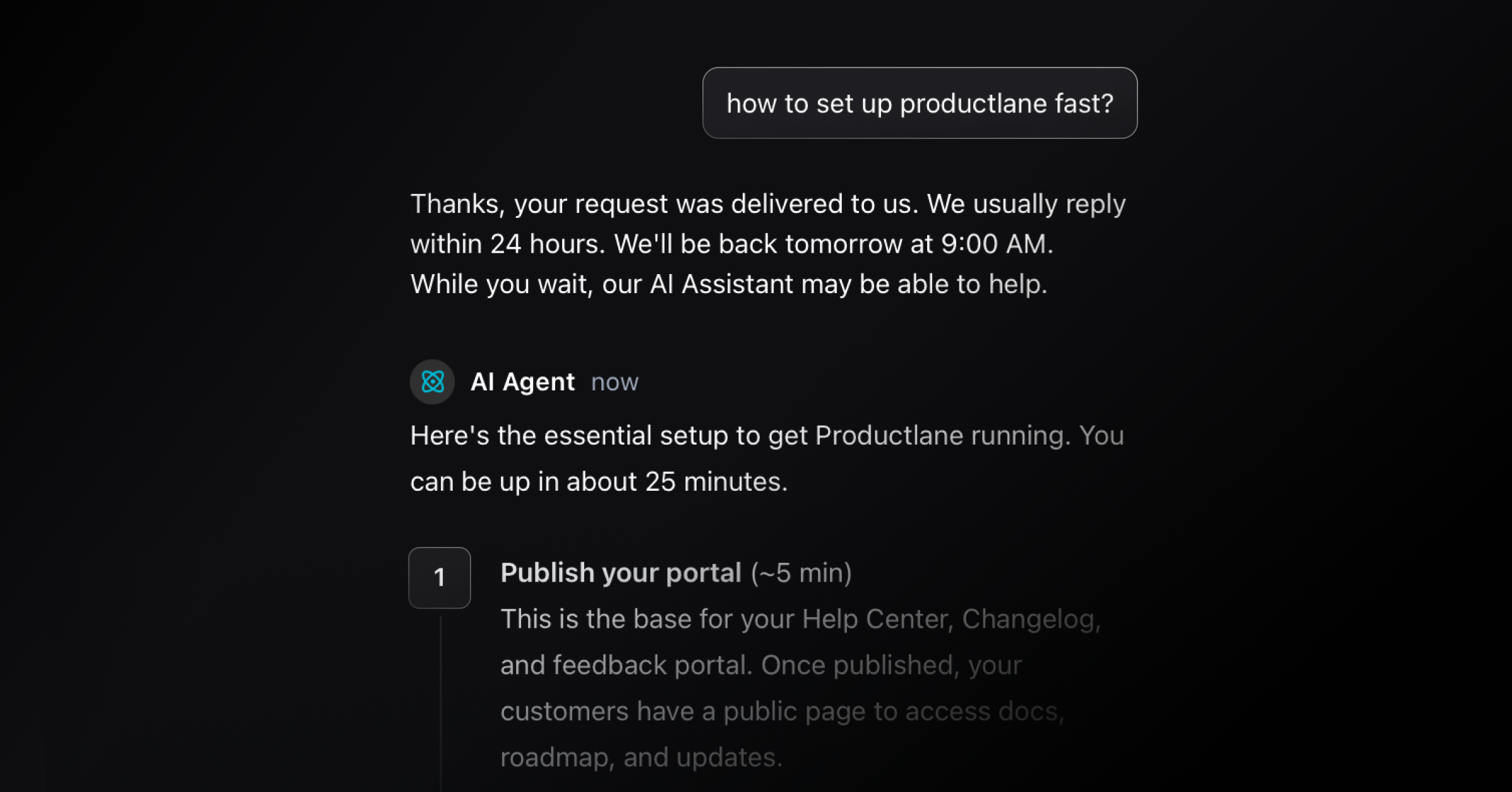
Live Chat also includes a powerful AI Agent that helps resolve support requests autonomously while waiting for a response. To activate it, open the widget settings and select Live Chat as the contact option.
Fluent transition from chat to Linear request
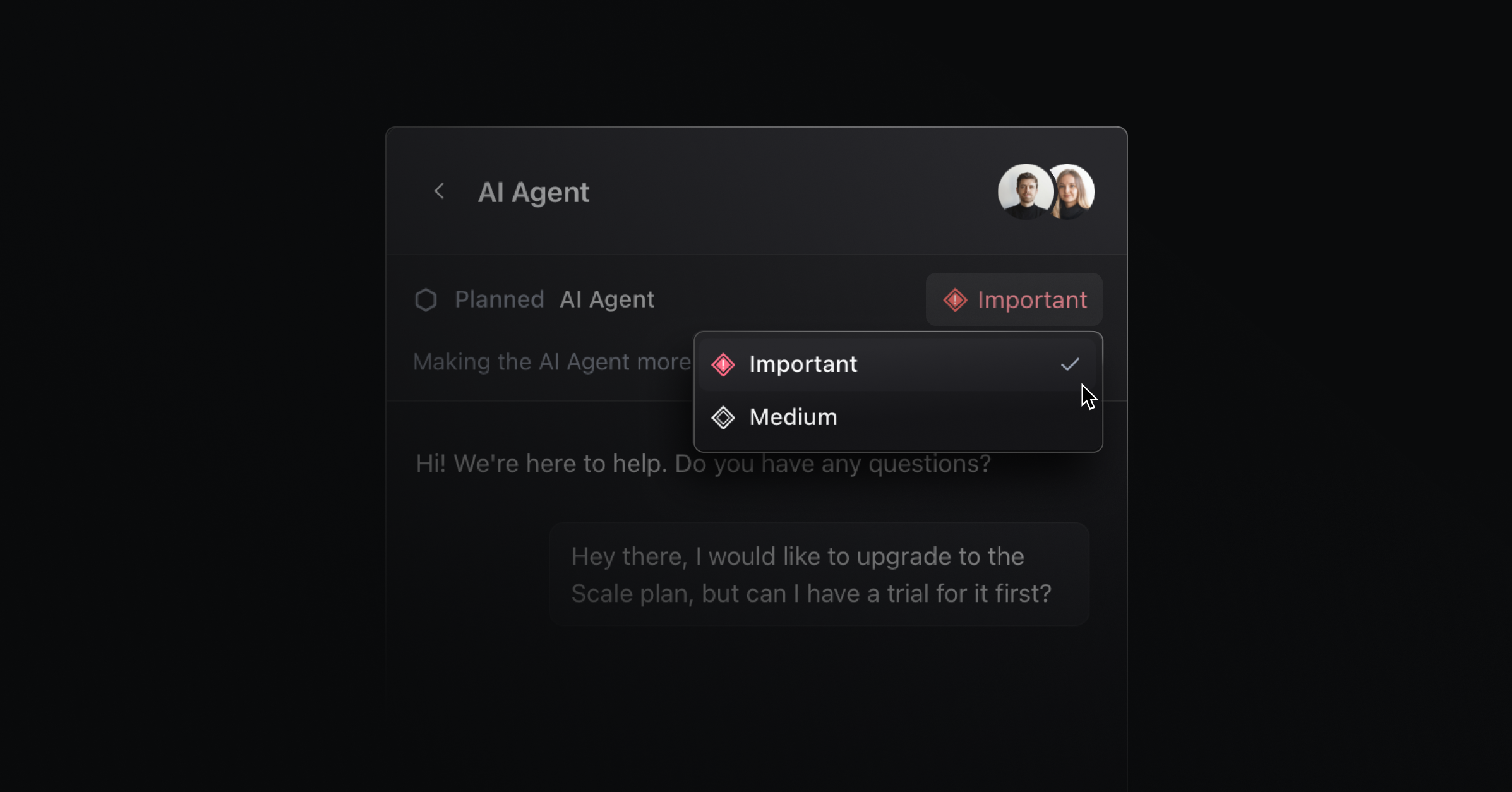
Customers can move from asking a question to submitting a request without leaving the widget. Once authenticated, they can see their conversations and requests directly in the chat, follow the progress of their issues, and mark them as important.
Integrated AI agent
The AI agent answers live chat messages instantly while your team is away. It understands the page the user is on and responds with relevant context. It is trained on your help center, roadmap, and changelog to answer the most common questions.
Live chat in the support portal
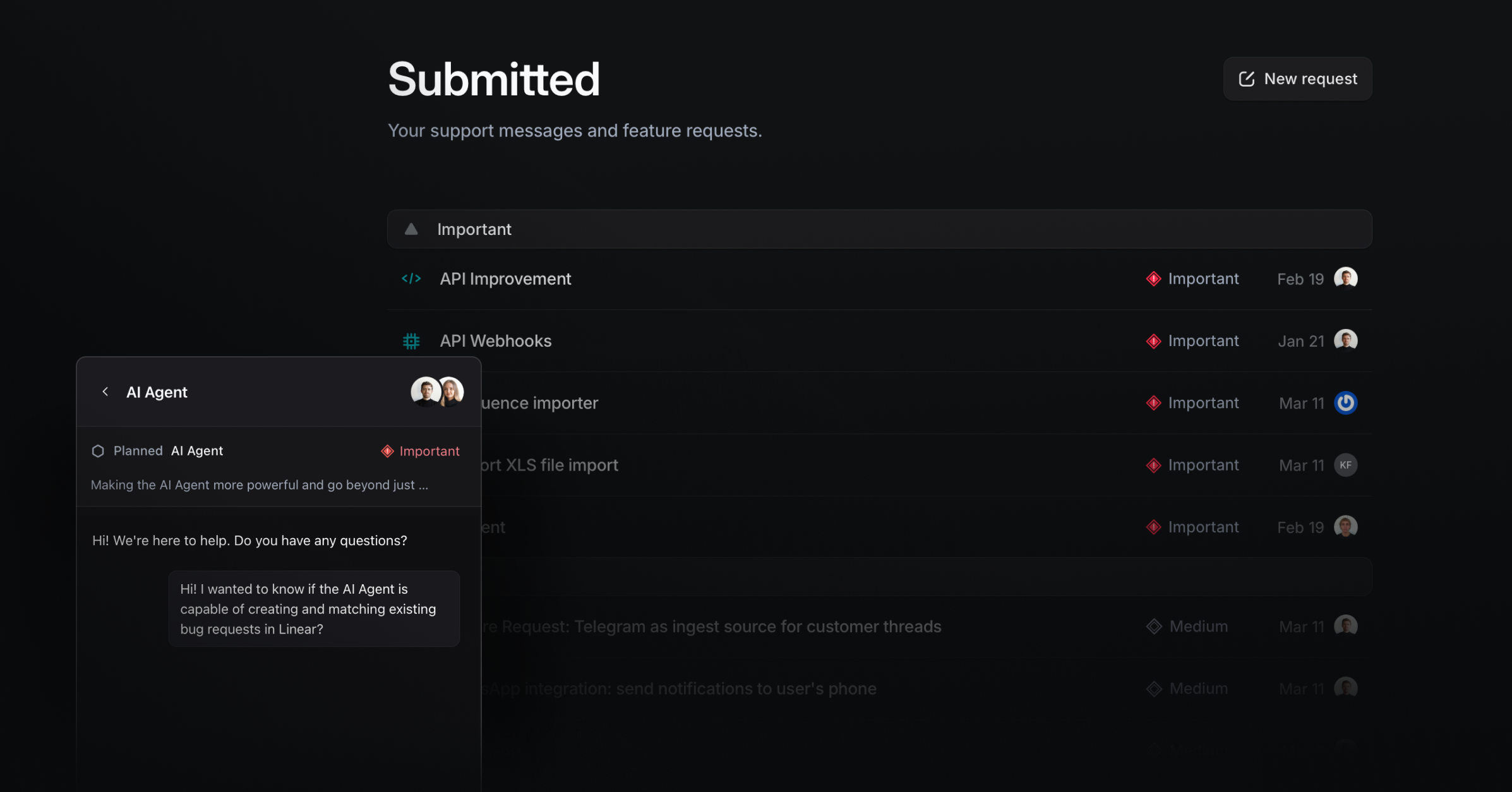
On the support portal, your customers find all their submitted requests and their current status. When clicking on a request, it now opens the Live Chat view in the widget with that conversation.
More improvements
AI Agent Feedback: Users can give thumbs-up or thumbs-down feedback on AI responses in the widget. Negative feedback opens a modal for detailed comments that are stored in the chat session.
Knowledge base in API: Read and manage your knowledge base via API so you can connect docs to your build and review pipelines.
Redesigned widget settings: Use a guided, step-by-step flow to configure your widget faster and with fewer mistakes.
Live chat icon option: Select a dedicated icon for the live chat launcher so visitors instantly recognize how to get help.
Priority dropdown in Support Portal: Let requesters and your team set priority directly in the portal list so triage is clear
Authenticated widget on the portal: Pass a signed identity to show personal history and prevent impersonation. Go to
Settings → Widgetto use it.Auto-send browser and console data: Capture browser version and console context from the widget to speed up debugging.
Support inbox inline screenshots: Paste or capture screenshots directly in the composer to share context quickly.
Private portal pages: Mark specific portal pages as private so you can share selectively without locking down the entire site. Go to
Settings → Portal → SSO.Slash commands in Support Inbox: Use quick commands to control everything without your hands leaving your keyboard.
Avatar selection for the widget: Select the visible avatars on the widget.