
Docs / Docs
Support Docs
Help customers use your product easily with beautiful docs.
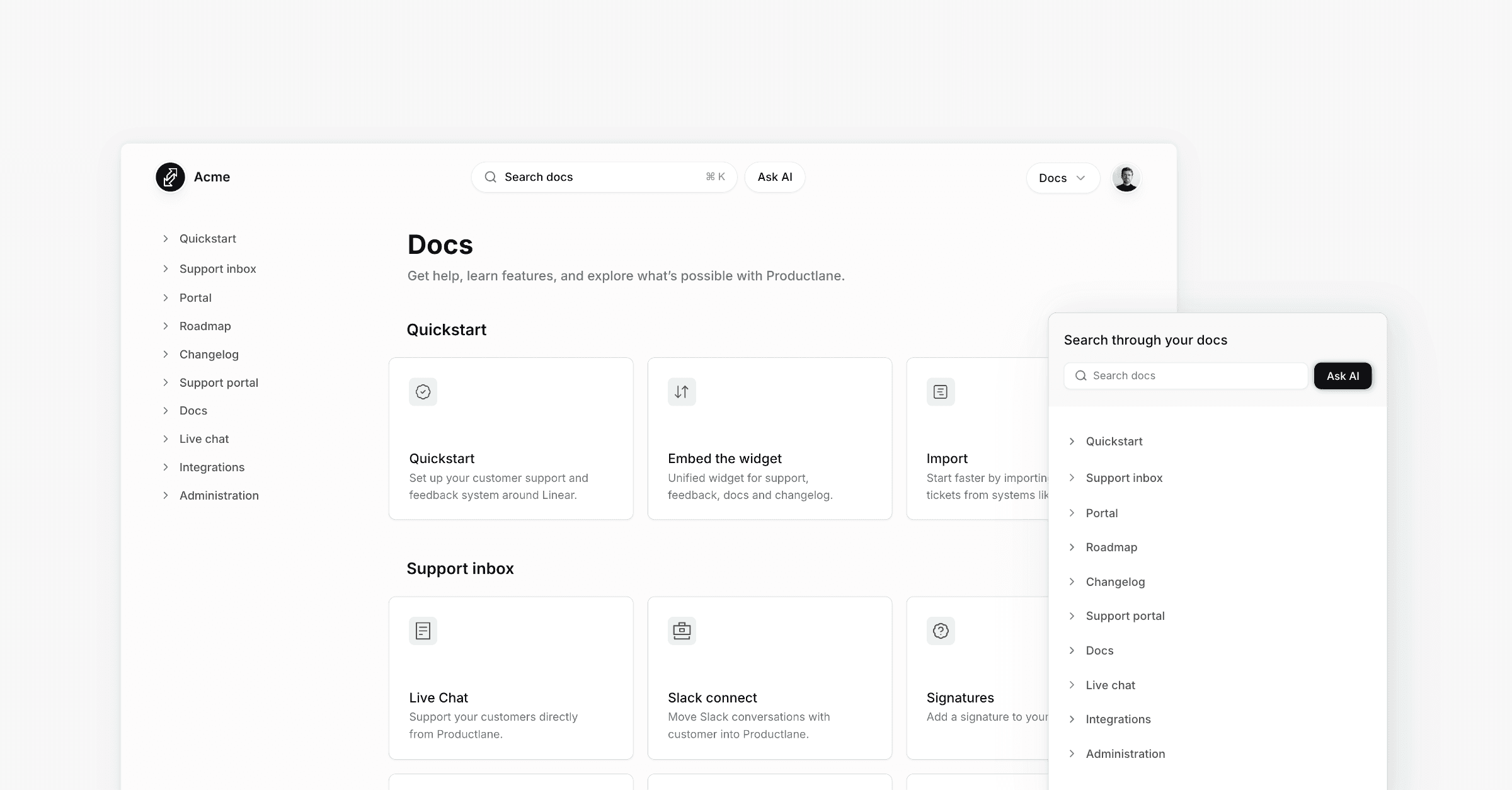
Knowledge base, Help center, Academy, manuals. There are many names for documents that help customers understand your product. We just call it docs.
Set up
Activate docs in the settings
To start using the Docs, go toSettingsand openDocs. In the first box, you need to click the switch to make the docs visible in the app. They won't be visible on the portal yet, only after you publish your first article.Create your first article
Now, you need to add a group and add your first page. We support only two navigation layers to help you simplify your content for the end user.Publish your first article
After you create your article, you can publish it on the top right of the page.The article is now live
Well done, the article is now live on your portal, and you can link to it in your app.
Images
Images in your docs are displayed at their native aspect ratio, so portrait and landscape screenshots alike render correctly without cropping or distortion. Images are capped at a maximum width of 1200 px and are centered automatically.
Reference docs with slash commands
You can quickly reference any published doc while composing a reply, writing a doc, or adding a thread comment. Type /doc in the editor to open a search panel, then find and select the article you want. Productlane inserts a clickable link with the article title directly into your text.
This makes published docs more discoverable and useful during day-to-day workflows — no need to leave the editor to find and copy a URL.
How to use it:
Place your cursor in any editor (email reply, doc, or thread comment).
Type
/doc(you can also type/docs,/article,/help,/reference, or/kb).Search for a published doc by name in the search field.
Use arrow keys or mouse to select the article, then press Enter or click to insert it.
A linked reference to the article is inserted inline at your cursor position.
Embed in the widget
The knowledge base is available in the widget. You can activate it on the widget settings with the Docs switch. After that, you can add a function to your app to open certain articles directly in the widget. Open the widget docs to find out how.
AI Chat
Activate the AI Chat, so your customers can ask your docs questions, and you will get a weekly report on how to improve your docs.
The AI chat uses your docs as the source of truth. If you get a question from a customer or the AI Chat, you can quickly open the relevant docs article with CMD K to update it. Future questions will then be answered automatically by the AI.
Docs suggestions (Beta)
Productlane can automatically suggest documentation updates when engineering work ships. These suggestions appear in a Suggestions section at the top of the docs sidebar, where you can review, accept, or reject them. Contact us for a beta invite.
How suggestions are created
Suggestions can come from two sources:
AI-generated proposals — When a linked issue is completed, the AI agent analyzes the changes (including any associated pull requests) and proposes docs updates. You can also trigger this manually from the command palette (
CMD K→ Generate documentation proposal) or from the AI chat sidebar.Manual proposals — Team members can propose edits to any article. Open the article, click Propose edit, make your changes, and submit for review.
Reviewing suggestions
Each suggestion in the sidebar shows the article title, a change-type icon (create, edit, or delete), and a diff stat showing lines added and removed. Click a suggestion to open the review view, which shows:
A diff preview of the article with insertions highlighted in green and deletions shown inline with strikethrough.
A review rail on the right with per-proposal cards. Each card shows who authored the change, a description, and buttons to accept or reject.
When multiple proposals target the same article, they are merged into a single preview so you can see the combined effect. Hover over a card in the rail to highlight that proposal's changes in the editor, and vice versa.
Accepting and rejecting
You can accept or reject each proposal individually. Accepted edits are applied to the article immediately. If the article has changed since a proposal was drafted, Productlane automatically rebases the proposal — if the rebase fails (e.g., the targeted content was deleted), the proposal is marked as superseded.
The docs sidebar badge shows the number of articles with open suggestions so you always know when reviews are waiting.
Version history
Recover earlier drafts of Changelog or help center entries with version history. Just use the three-dot menu in the top right to view auto-saved versions and restore one.
Was this helpful?