
Docs / AI Agent
Code Agents
Auto-fix issues with Cursor Cloud
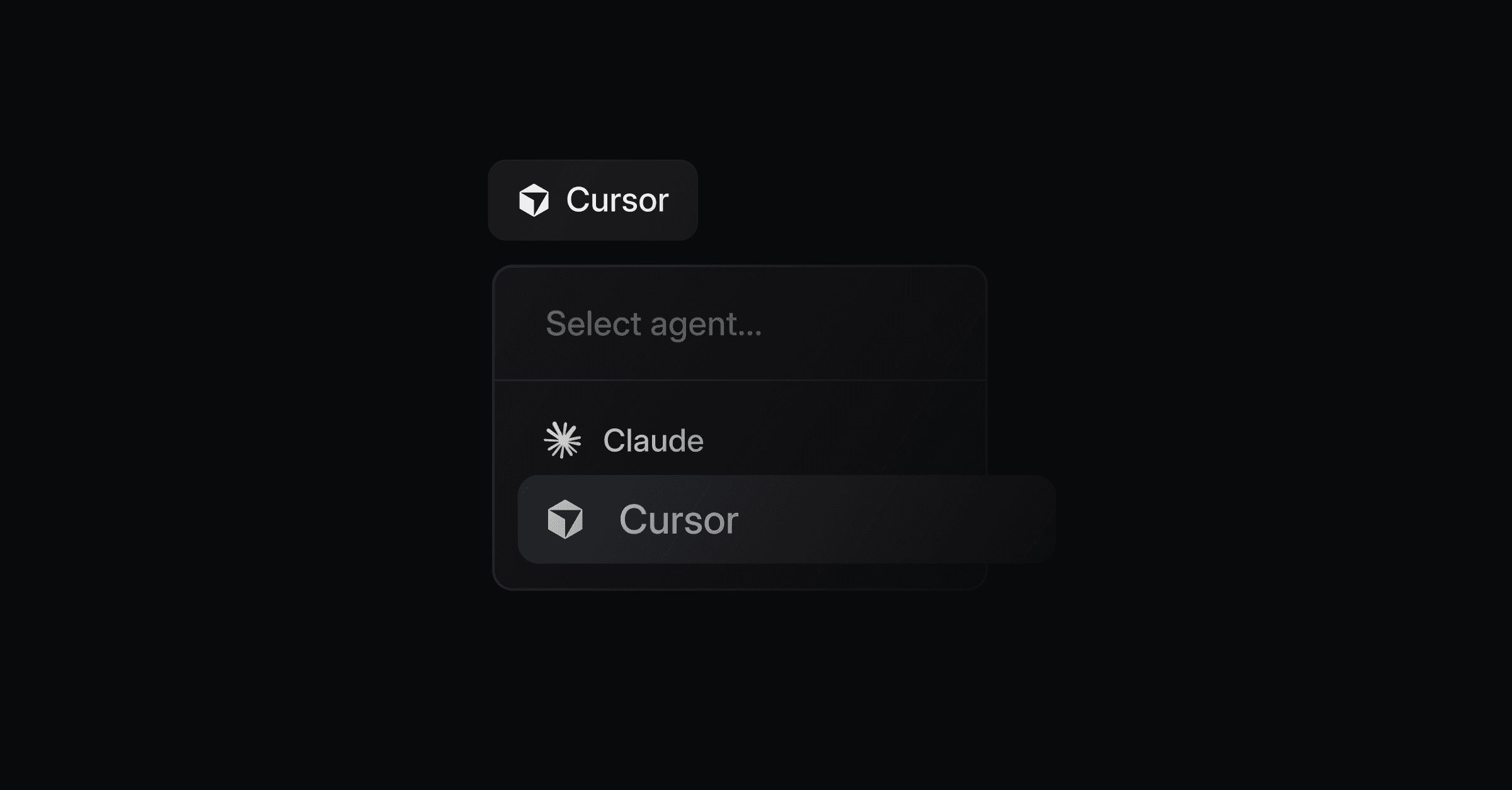
Productlane can hand off bug reports to Cursor Cloud and let a coding agent open the pull request for you. When the AI triage classifies new feedback as a small, actionable bug, Productlane forwards the issue title, description, comments, and any attached screenshots to Cursor Cloud. Cursor spins up an isolated VM, writes the fix against your connected repository, and opens a PR. The PR link then appears back on the issue in Productlane.
Beta: The Cursor Cloud integration is in beta.
Before you start
You'll need:
A Productlane workspace on the Pro plan or higher.
A paid Cursor plan with usage-based (on-demand) billing enabled.
A GitHub (or GitLab) account connected inside Cursor with read-write access to the repository you want the agent to work on.
Admin access in both products.
Set up Cursor Cloud
Everything in this step happens inside Cursor, not Productlane.
Connect GitHub and enable on-demand usage
Go to the Cursor Dashboard.
Connect your GitHub (or GitLab) account with read-write access to the repo you'll point Productlane at.
Open the Settings tab and enable on-demand usage. Set a spending limit. Cursor requires this before Cloud Agents will run.
For more details, see the official Cursor Cloud Agents setup guide.
Enable Computer Use (optional, recommended for UI bugs)
Computer Use lets the cloud agent open a browser inside its VM and click through your app to verify its own fix before opening the PR. This pairs well with Productlane because the screenshots your users attach to feedback are passed straight to the agent, so the agent can reproduce the bug the reporter actually saw.
In the Cursor Dashboard, open Settings -> Team features.
Toggle Computer use on.
See the Cloud Agent capabilities and Dashboard settings docs for the full feature list.
Create a User API key
In the Cursor Dashboard, go to Integrations -> User API Keys.
Click Create API key.
Copy the key (it starts with
cursor_api_).
Treat the key like a password - it can trigger agents on your connected repositories. You'll paste it into Productlane in the next step.
Connect Cursor Cloud to Productlane
In Productlane, open Settings -> Integrations -> Cursor.
Paste the API Key you just copied into the API Key field.
Enter the Repository in
owner/repoformat. For example,acme/webapp. This is the repo the agent will open pull requests against.Click Connect.
Once the key is validated, you'll see a green Connected badge on the integration page. You can change the repository from the same page at any time, or click Disconnect to remove the key from Productlane. Disconnecting here doesn't delete the key inside Cursor - revoke it there too if you want it fully gone.
Turn on auto-fix in Agent settings
In Productlane, open Settings -> AI Agent.
Toggle Auto-assign AI Agent to bugs on.
Optional: toggle Exclude manually created issues on if you only want the agent to act on bugs that came through the AI chat, and leave manually-entered feedback alone.
That's it. The next time Productlane classifies new feedback as a bug, a Cursor Cloud run is queued automatically. There's a short (~5 minute) debounce before the agent actually starts, which gives you time to edit the issue or cancel the run if you need to.
Manually trigger an agent run
You can also trigger an agent run at any time without enabling auto-assign:
From the command palette (keyboard shortcut
K), search for Spawn AI Agent while a thread is open - this lists the linked issues you can send to the agent.From any issue detail view, open the actions menu and select Open in Claude Code (shortcut
C) to open the issue directly in Claude Code, or use Spawn AI Agent to queue a Cursor Cloud run.
Both options are available to all users on Pro and above - no feature flag is required.
What happens after auto-fix triggers
Productlane sends the issue title, description, comments, and up to 5 attached screenshots (PNG, JPEG, GIF, or WebP; up to 5 MB each) to Cursor Cloud.
Cursor runs the agent on a VM against your connected repository and automatically opens a pull request.
The PR link and the agent's run status appear on the issue inside Productlane.
You can also trigger a run manually from any issue (handy if you left auto-assign off, or if the first attempt wasn't quite right and you want a re-run).
Troubleshooting
The Connect button shows an upgrade prompt. The Cursor integration is available on Pro and up. Upgrade your workspace plan first.
The auto-assign toggle is greyed out. Cursor isn't connected yet. Go back to "Connect Cursor Cloud to Productlane" and make sure the green Connected badge is showing.
The agent never runs on an issue. Only issues classified as bugs are eligible. Feature requests and questions are skipped. Also, check that the issue isn't already completed or canceled, and that there isn't already an active run attached to it.
Cursor returns a repository error. Verify the repository is in
owner/repoformat and that the GitHub account you connected inside Cursor has access to it.Computer Use isn't available in Cursor. It's gated to enterprise teams at Cursor. You can still use the integration - the agent just won't open a browser to verify its changes.
Related links
Was this helpful?