
Docs / AI Agent
AI Agent
Get instant answers from your docs, Linear projects, and changelog.
Overview
The AI Agent lets your customers get instant answers from your documentation, public Linear issues and projects, and your changelog. It also helps your support team reply faster by drafting responses, either on demand or automatically with Auto AI-Drafts.
1. Install the Widget
Before you can use AI Chat, make sure the widget is installed on your app and website.
2. Activate Docs
The AI Chat needs high-quality sources to deliver accurate answers. Move your existing documentation into Productlane, then activate Docs in your settings.
Important: Do this before enabling AI Chat. Without docs, the AI won't have reliable information to work with.
3. Enable AI Agent
Go to Settings → AI Agent.
Turn on the switch to activate it.
Optional: Turn on the switch for Weekly AI Chat Summary.
4. Draft a Reply
When you open a customer thread in your inbox, use the Draft a reply button to have the AI generate a response. It uses your docs, the conversation history, and your other connected sources to compose a draft you can review, edit, and send.
This is most useful for common questions that are already covered by your documentation.
Auto AI-Drafts
Enable Auto AI-Drafts to have the AI generate a draft reply automatically whenever a new thread arrives or a new inbound message comes in, with no button click. The draft appears in the reply composer with a "Drafted by AI" badge. Hover the badge to see which sources the AI used.
For the full configuration options, see the Auto AI-Drafts page.
5. AI Auto-Replies
AI auto-replies let the AI Agent respond automatically to incoming messages across email, widget and portal submissions, and Slack, so customers get an immediate answer drawn from your sources.
How it works
When enabled, the AI generates a clearly labeled ⚛️ AI Agent response that is appended to your existing auto-reply. For email, the customer receives your standard auto-reply plus the AI section. For Slack, the AI response is posted as a threaded reply. For widget and portal submissions, the AI reply is included in the auto-reply email.
The AI uses the same sources as AI Chat (your Docs, public Linear issues and projects, Changelog, and Roadmap) to answer the customer's question.
Follow-up replies
If the customer sends more messages before a human responds, the AI keeps auto-replying to each one. Once a human replies to the thread, the AI stops responding to that conversation automatically.
How to enable
Go to Settings → AI Agent.
Make sure the AI Agent is turned on.
Scroll to the AI auto-replies section.
Turn on the Generate auto-replies with AI toggle.
Note: AI auto-replies require a Pro or Scale plan.
Supported channels
Email: the AI section is appended to the standard auto-reply email.
Widget and portal: the AI reply is included in the auto-reply for submissions from the widget or support portal.
Slack: the AI response is posted as a threaded reply in the Slack channel. When combined with office hours, the out-of-office message and AI response are sent together.
6. Weekly AI Chat Summaries
Each week, Productlane generates a summary of all AI conversations. Use it to spot incomplete or incorrect answers and update your docs quickly. Press CMD + K to jump to the right article and edit it directly.
7. Customization
In the AI Chat settings, you can set a welcome message and add up to three suggested questions to guide your customers. By default these highlight your three main sources: Productlane docs, public Linear issues and projects, and your changelog.
Offer to speak to a human
By default, the AI Agent offers to escalate to a human when it cannot find an answer. This "Speak to a human" prompt relies on Live Chat being enabled.
To keep Live Chat available for direct conversations but stop the AI from suggesting it, turn off the Offer to speak to a human toggle in Settings → AI Agent. With it off:
The AI no longer suggests contacting a human after an unsuccessful answer.
Customers can still reach your team through Live Chat directly. Only the AI-initiated prompt is removed.
Use this when you want to handle escalations on your own terms.
You can also provide custom instructions to guide how the AI responds. These apply to both AI Chat and AI auto-replies, so you can set your team's tone, specific guidance, or topics to avoid.
8. Customer Experience
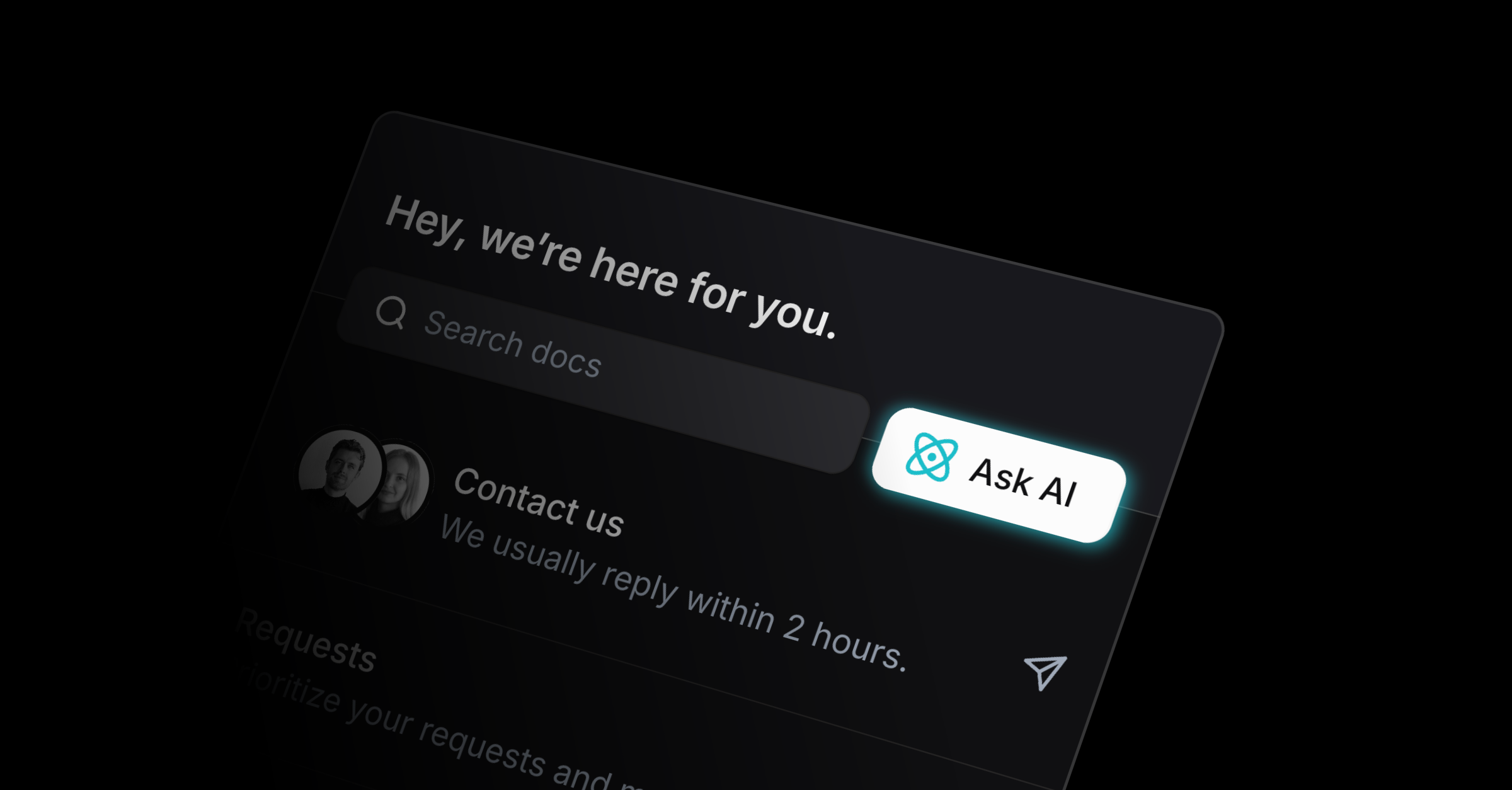
After enabling it, your customers see a new Ask AI button in the top right corner of the widget. They can ask questions, get answers based on your docs, Linear data, and changelog, and open cited articles directly inside the widget.
Note: If you reply in one of these AI Chat threads, your message is sent to the customer by email.
9. Limitations
Currently, only Docs, public Linear issues and projects, and your Changelog work as AI sources. External sources aren't available yet, which keeps the customer experience consistent. If you need more flexibility, submit a feature request.
Was this helpful?