
Productlane Agent
Instant answers out of your docs, roadmap, and changelog.
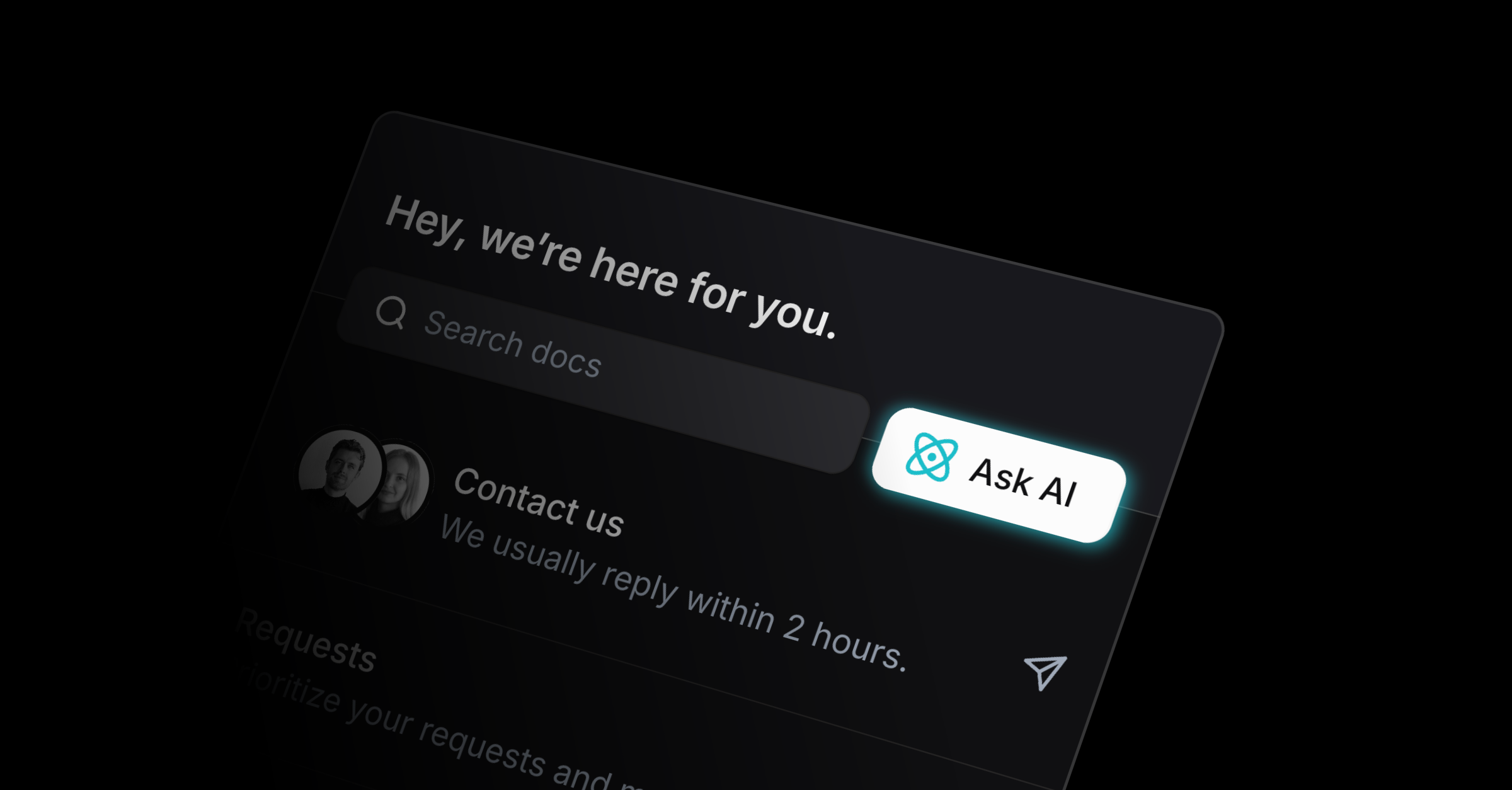
The Productlane Agent answers customers and resolves conversations on the channels you deploy it to. It answers from your help center, roadmap, and changelog, in the customer's own language.
When a conversation turns out to be a bug or a feature request, it can file a Linear issue. When it cannot resolve something, it hands the thread to your team.
The Agent needs the Starter plan or above, and it is on by default for new workspaces.
Where to find it
Settings > AI > Productlane Agent. A live widget preview sits beside the settings, so you see the Agent as your customers will.
Set it up
Turn on the Productlane Agent.
Under Deploy, pick the channels it answers on. Live chat in the widget is always on. You can add email, Slack, Microsoft Teams, threads created through the API, support portal messages, and feature requests from the portal.
Edit the Welcome Message and the Suggestions to match your product's voice. With several languages enabled, pick each one in the selector and translate them.
Add Workspace guidance: tone, policy, and product context the Agent should follow. Click Learn writing style from replies to preview a style based on your team's past replies, then add it to your guidance or discard it.
With Linear connected and a default team set, turn on Create Linear issues from agent chats so bug and feature-request chats become issues.
To have bugs fixed automatically, connect Cursor and turn on Auto-assign Productlane Agent to bugs. Turn on Exclude manually created issues to leave out issues your team filed by hand.
Everything saves as you change it.
What grounds its answers
Your help center, roadmap, and changelog, by default. That includes external links you add to your docs sidebar: the Agent reads those pages and cites them with their real URL.
Connecting GitHub maps every customer-facing screen in your linked repository into agent-only articles, and the Agent answers product questions from those. It never reads your repository directly.
Connecting PostgreSQL lets whitelisted, read-only SQL inform answers. A query marked Answer customers with this lets the Agent look up a verified customer's own account data too, like their plan or usage.
On email, it also reads files and pasted screenshots on the customer's message, up to five per message.
Anonymous visitors
The Agent answers a visitor with no known email the same way it answers an identified one, for as many turns as the conversation runs. It asks for an address only when the visitor wants a human.
Asking for a human
A customer can ask for a person at any point. The Agent recognizes requests like "talk to a human" or "connect me with support" and shows a Talk with a human button.
If the widget does not know the visitor's email yet, the button asks for one first, since your team needs an address to reply to. The handoff runs as soon as they add it. Once someone has asked for a human, the Agent stops replying in that conversation.
With Live Chat on, the conversation moves into Live Chat on the same thread, and the customer sees a confirmation message. With Live Chat off, the customer stays in the AI chat and sees no separate handoff notice. See Live Chat.
What a handoff does
A thread reaches your team in two ways.
The customer asks for a person. The thread comes back to your inbox, unread and high priority:
It stays open. Productlane will not mark it done on its own, so it stays in your open views until a teammate picks it up.
The timeline says so. The activity timeline logs "Customer asked to talk with a human".
Your team hears about it. Turn on Productlane Agent handoffs for Slack and email under Settings > Notifications.
The Agent decides on its own that the conversation needs a person. It reopens the thread and flags it for your team, and the timeline logs "Productlane Agent handed this conversation to the team".
Controlling handoff
The Agent always hands a thread to your team in the two cases above. The only way to stop handoffs is to turn off the Productlane Agent, which also stops it from answering.
Use Workspace guidance to shape when and how it escalates. List the topics that should always go to a person, and the tone it should use when it hands a thread over.
The Agent cannot send an email in place of a handoff.
Reading its activity
When the Agent runs three or more actions on a thread within three minutes, the timeline folds them into one entry, such as "Productlane Agent ran 7 actions". Expand it for the full list. Failures stay visible when folded, for example "Productlane Agent ran 5 actions, 2 failed".
When a routine or a docs proposal is skipped because the AI spend limit was reached, the timeline says so, with a Raise the limit link to Settings > AI > Usage.
Limits
Each confident resolution without a handoff counts against your plan's included resolutions for the month. That covers answers in the widget and live chat, and AI auto-replies over email, Slack, or Microsoft Teams. A teammate testing the Agent in AI chat never uses a resolution, on a trial or on any paid plan.
Once the included resolutions are used up, the Agent stops resolving unless pay-per-use is on. Usage and caps live under Settings > AI > Usage. When the spend limit pauses the Agent, its settings page shows a Paused badge next to the switch, even though the switch stays on. See AI Usage & Credits.
Each visitor can send up to 150 chat messages a minute per IP address and 50 a minute per session, and a single message can run to 4,000 characters. After 50 messages in one chat, the widget asks the visitor to start a new chat.
If the Agent cannot reach its docs, roadmap, or changelog search, it says so and offers to connect the customer with your team.