
Multiple Portals
Serve different audiences from one Productlane workspace.
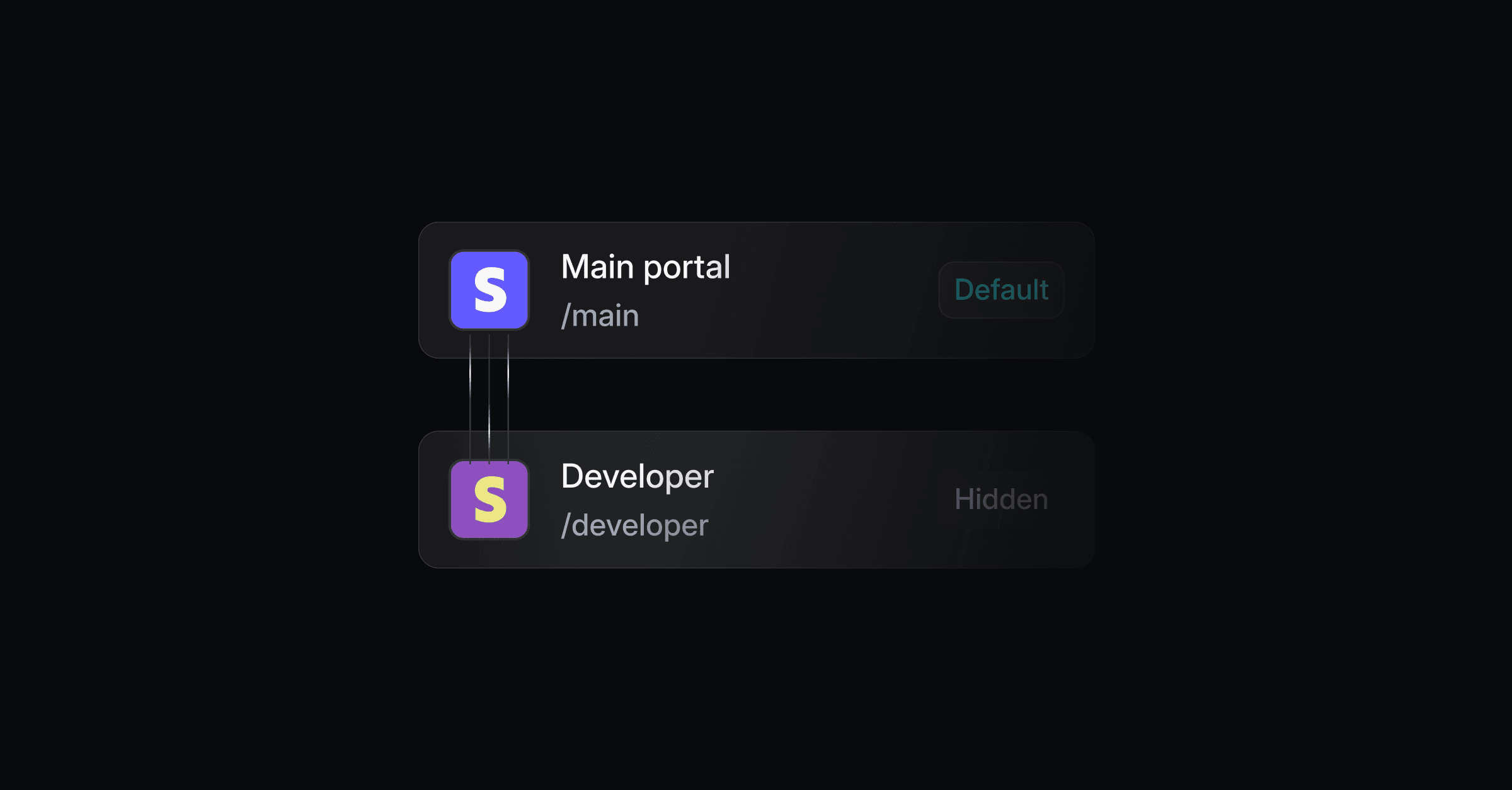
With Multiple Portals you can serve different audiences from a single Productlane workspace. Each portal is a named view of your content - you decide which projects, issues, changelogs, and docs articles appear in each one.
When to use multiple portals
Multiple portals are useful when you need to show different content to different groups of people. Common examples:
Customer tiers - show enterprise customers a different roadmap than free-tier users.
Product lines - maintain separate feedback portals for each product.
Internal vs. external - keep an internal portal for your team and a public one for customers.
Enable multiple portals
Open Settings → Portals.
Under Access settings, find the Multiple Portals toggle.
Turn it on (requires the Scale plan or above).
Create your first portal by entering a name and clicking Create.
You can rename or delete portals at any time from the same settings page. When you upload a logo for a portal, a crop dialog lets you drag to reposition and zoom before saving it.
Give a portal its own domain
Open a named portal from Settings → Portals → All portals and scroll to its Domain section to serve that portal from a domain you own, separate from your workspace's custom domain. Only a workspace admin can connect or remove it.
Enter the domain, for example
docs.example.com, and click Add.Productlane shows a CNAME record: add the Host and Value it gives you at your DNS provider.
The domain shows Pending until the record resolves, then switches to Live, and visitors reach the portal at the root of that domain.
Click Remove to detach the domain. The portal falls back to its workspace URL, and existing links to the domain stop working.
The Main portal
The Main portal is the default portal that maps directly to your workspace, unless you make a named portal the default instead (see Make a portal the default below). It is always listed first on the Settings → Portals page and cannot be deleted or given a URL slug.
You can edit the Main portal's name and logo by hovering over its row and clicking the edit (pen) icon. The dialog lets you:
Rename your workspace (the name shown on the Main portal and across the dashboard).
Upload or replace the workspace logo used on the Main portal. As with sub-portal logos, you can crop it before saving.
Because the Main portal is the workspace itself, these changes update the workspace name and logo everywhere, the dashboard included.
Make a portal the default
Open a named portal from Settings → Portals → All portals and turn on Default portal in its Routing section. Visitors who reach your workspace's bare URL now land on that portal instead of the Main portal, and the Main portal moves to its own /main path.
Only one portal can be the default at a time. Turning it on for a portal turns it off for whichever one had it before.
Assign content to portals
Once you have portals, you can control which portal(s) each piece of content appears in.
Projects and issues
On the roadmap list, each item has a portal selector pill. Click it to choose:
Visible for all - the item appears on every portal and the main view.
Hidden - the item is hidden from all portals.
Specific portals - select one or more portals where the item should appear.
You can also change portal assignments from a project or issue detail page. Its menu has a Move to portal option that puts the item on one portal and takes it off the others.
To move every project and issue from one portal to another, hover the portal in the Roadmap sidebar, open its actions menu, and choose Move to portal. Pick the destination, which can be the Main portal. The dialog shows how many projects and issues move. Items that are also on other portals stay on them.
To migrate help center or changelog content in bulk, use Import or MCP.
Changelogs
When editing a changelog entry, use the portal selector in the top bar to assign it to specific portals. When you publish or send an update for a changelog assigned to a named portal, the email broadcast defaults to that portal's name and logo instead of the workspace's. See Broadcasts.
Docs articles
In the docs editor, the portal selector in the header lets you assign an article to one or more portals. To move an article or a whole group to a different portal later, open its three dots menu in the docs sidebar and choose Move to portal. Moving an article carries its subpages with it and asks you to pick a destination group on the target portal. Moving a group moves every article inside it to the same portal.
Sending updates from a portal
When you send an email update (see Broadcasts) for a changelog, project, or issue assigned to a specific portal, the sender name in the send-update modal defaults to that portal's name instead of your workspace name. You can still edit it before sending.
API support
The v2 API works with portals:
GET /portal/instanceslists your portals with their id, slug, name, logo, and whether each is the default or shows in the portal selector. The Main portal is not in the list: elsewhere it appears as anullportal_instance_id.POST /portal/instances/{id}/move-itemsmoves every project and issue from the portal in the path to the portal into_portal_instance_id. Pass__main__for the Main portal on either side. Items that are also on other portals stay on them.resourceslimits the move toprojects,issues, or both (the default).dry_run: truereturns the counts without moving anything. The call needs theprojects:writeandissues:writescopes.Docs groups (
POST /docs/groups,PATCH /docs/groups/{id}), docs articles (POST /docs/articles,PATCH /docs/articles/{id}), and changelogs (POST /changelogs,PATCH /changelogs/{id}) take an optionalportal_instance_id. Changelogs also takeportal_instance_idsto assign several portals at once.List endpoints for docs groups, docs articles, and changelogs filter by
portal_instance_id. Pass__main__for the Main portal, or leave it out for every portal.A docs article created without
portal_instance_idtakes its group's portal. Passnullto force the Main portal.A portal id from another workspace returns a 404.
Portal navigation
When multiple portals are enabled, a tab bar appears in the sidebar of the Roadmap, Changelog, Docs, and Inbox sections. Use it to filter the list by portal or to view hidden items.
Keyboard shortcuts 1 through 9 switch between tabs quickly.
Portal selector on the public portal
Visitors to your public portal see a portal selector dropdown in the header (next to your workspace name). They can switch between portals to see the content relevant to them. If no portal is selected, all public content is shown.
The portal context is passed as a ?portal=<id> query parameter, so the selected portal persists across page navigation.
Search on a named portal follows the same scoping: a search only returns issues and projects that are assigned to that portal (or to "Visible for all"), so visitors never see results from a different sub-portal. See Publish your roadmap for how portal search handles issue descriptions.
Widget and sub-portal content
The widget defaults to the Main portal's changelog, docs, and roadmap content, regardless of which sub-portal's site it is embedded on.
To serve a specific sub-portal instead, pick that portal from the dropdown above the install snippet on Settings → Widget, and copy the snippet it generates. It adds a portalInstance field next to widgetKey:
Productlane.init({
  widgetKey: "<your-widget-key />",
  portalInstance: "product-a",
});
See Widget for the full install snippet and its other options.
Changelog audience restriction
Individual changelog entries can be restricted to specific email domains, independent of portal assignments. This is useful when you want to share a changelog with only certain customers (for example, beta participants).
Per-entry restriction
Open a changelog entry.
Click the Audience button in the toolbar.
Add one or more email domains (e.g.
acme.com).
Only portal visitors signed in with a matching email domain can view the entry. Anonymous visitors are redirected to the portal login page. Visitors with a non-matching domain see a 404.
Restricted changelogs are automatically hidden from:
The public changelog listing for non-matching visitors.
The RSS feed for non-matching or anonymous visitors.
The widget (since the widget cannot verify viewer identity).
The public API when called without authentication.
To remove the restriction, clear all domains or click Visible to everyone.
Workspace-level restriction
You can also restrict the entire changelog section to specific email domains from Settings → Changelog. Toggle Restrict to specific domains on and enter a comma-separated list of domains. This requires the Scale plan.
Known limitations (beta)
Multiple Portals is currently in beta. The following limitations apply while the feature matures.
Productlane Agent docs indexing
In multi-portal workspaces, published docs articles may not be indexed by the Productlane Agent due to a docs-sync gap in the multi-portal beta. This means the Productlane Agent may not be able to answer questions that are covered by your help center articles.
Workaround: If you notice the Productlane Agent is not finding answers from your docs, contact Productlane support to request a manual reindex of your workspace. After the reindex, the Productlane Agent will pick up all published articles.