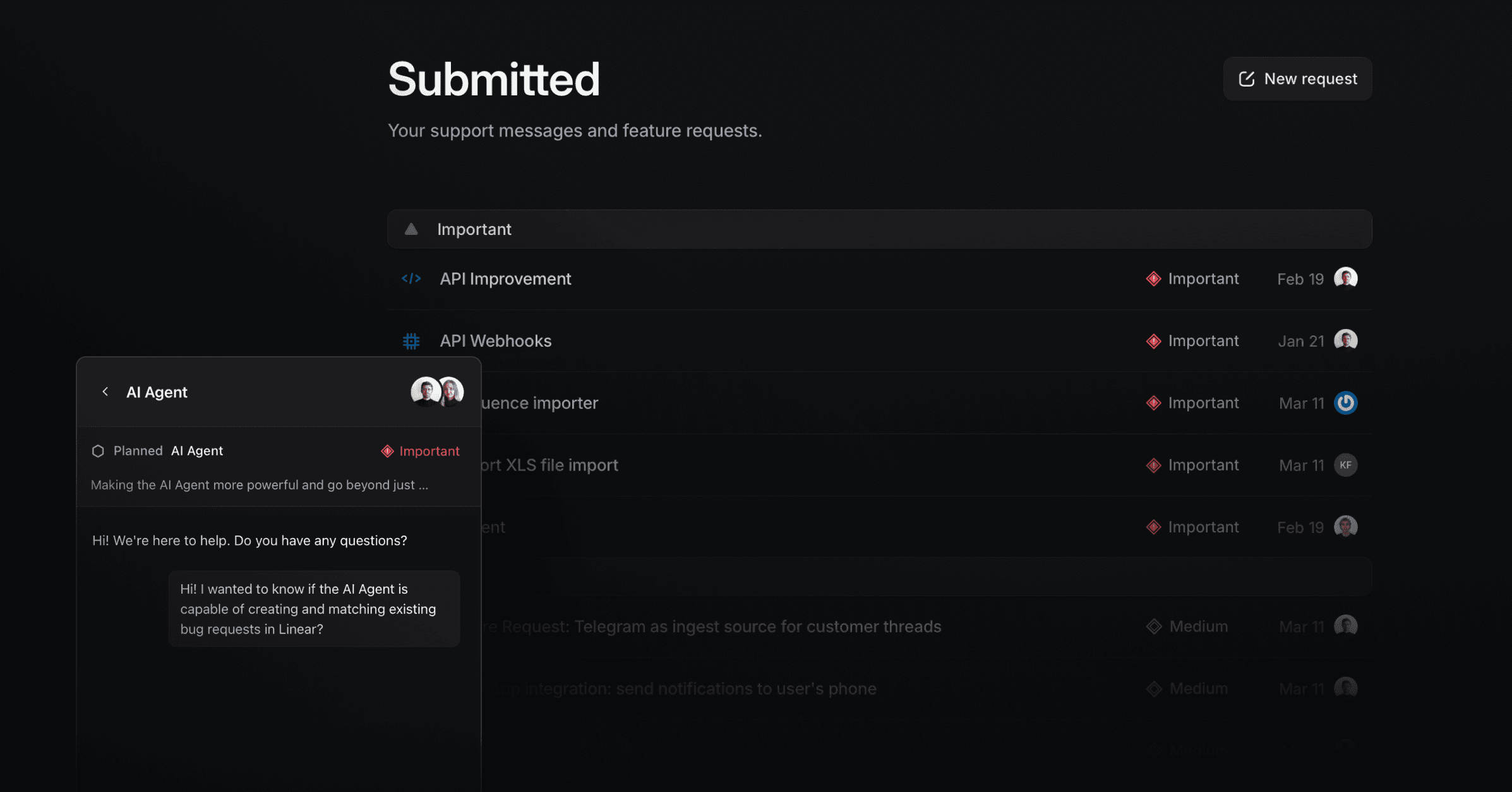
The Support Portal is where customers read their own requests and conversations, across live chat, email, Slack, the widget, and the Productlane Agent. Publishing it needs the Scale plan. Set it up under Settings > Support Portal and turn on Make Support Portal public.
What a customer sees depends on their company first. Productlane puts a contact into a company by the domain of their email address, when Auto-assign contacts to companies by domain is on under Settings > Assignments. Two settings build on that:
Team requests shows a contact every request tied to their company, including ones their colleagues opened.
Cross-company thread visibility matters only when a contact moves to another company. It decides whether they still see threads from the company they left.
Domain grouping assumes everyone on a domain works at one company. That breaks when unrelated people share a domain, such as separate teams at a large customer, or contacts on a shared vendor domain. Productlane still groups them into one company, so with Team requests on, they can see each other's requests, AI and widget conversations included.
To keep them apart:
Open Customers and split the contacts into separate companies. This is the most precise fix, though you may need to repeat it when another unrelated contact signs up on that domain.
If splitting is not practical, turn off Team requests on the Support Portal settings page, or the matching toggle on the Feature requests page. This applies to the whole workspace: every contact then sees only their own requests.
Set Cross-company thread visibility to Strict, so a contact moved to another company stops seeing threads from the one they left.
When a thread is linked to a Linear issue, each status change in Linear, such as In Progress or Done, appears on the request's timeline in the widget and in the Support Portal. The customer sees the current status and its history when they open the request.
Status changes do not message the customer. To tell them when their request ships, use Close loop.
When a customer asks for a link to a conversation, send them your Support Portal link. Your inbox URL works only for teammates signed in to your workspace. A customer who opens it sees a login screen.
The portal has no link per conversation. The customer opens the portal, sees every conversation they have had with you, most recent first, and picks the one they want.
Requirement | If it is missing |
|---|---|
Make Support Portal public is on | The customer sees the portal as unavailable |
The workspace is on the Scale plan | The settings page shows an upgrade panel instead of the portal |
Linear Customer Requests is on, if Linear is connected | The customer cannot see synced Linear issues or projects |
The contact belongs to the right company | Team requests may miss their colleagues' threads |
Cross-company thread visibility, if the customer changed companies | Decides whether their older threads still show |
Portal SSO, if you set it up | The customer signs in through your SSO first |
Go to Settings > Support Portal.
Copy the public URL under Make Support Portal public, or use your custom domain if you set one up.
Send it to the customer.
Hiding an issue or project on the Feature requests screen takes it off the public roadmap only. A customer whose company has that issue or project as one of their requests still sees it in their Support Portal and in the widget.