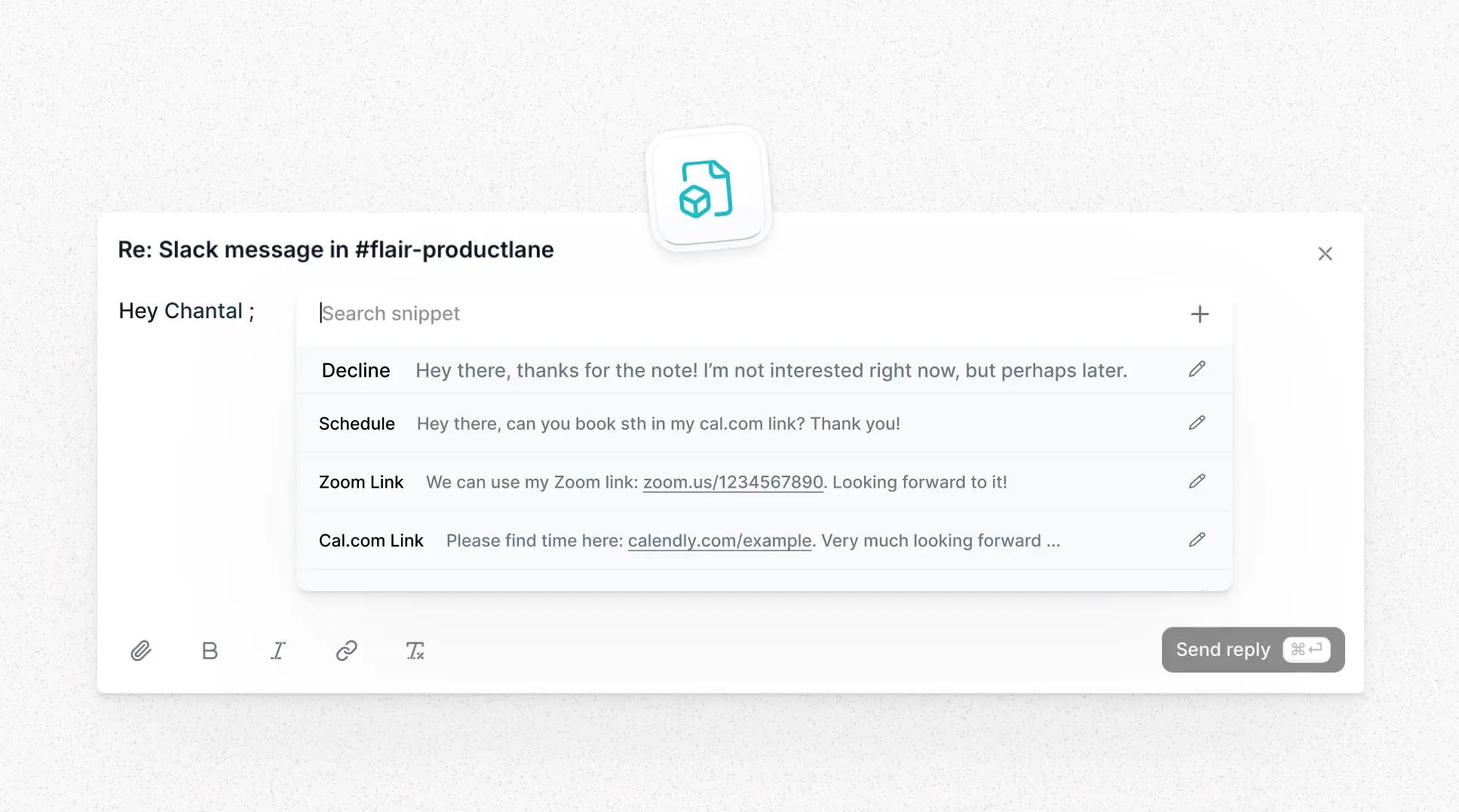
Macros, formerly called snippets, are saved text blocks your team inserts into replies with one keystroke. Use them for the things you write again and again: thanking someone when their request ships, sharing your calendar link, or explaining a standard policy.
Type ; in the reply editor to open the macro picker. Create and manage macros in Settings > Macros.
Macros are available on the Pro plan and above.
Type [ while writing a macro to open a list of variables, like [name], [company], or [agent_name]. When you insert the macro into a reply, Productlane replaces each variable with the matching detail from the thread, such as the contact's first name or the company's tier.
Variable | Group | Inserts |
|---|---|---|
| Contact | First name |
| Contact | Last name |
| Contact | Full name |
| Contact | Email address |
| Company | Company name |
| Company | Company domain |
| Company | Company tier |
| Company | Company status |
| Company | Company size |
| Company | Company revenue |
| Company | Linear owner of the company |
| Teammate | Name of the teammate sending the reply |
If the thread is missing a detail, like a company size, Productlane drops the variable instead of showing a blank bracket. A few variables fall back to a generic word instead:
[name]becomes "there" and[company]becomes "your company" when the contact or company record has no name on file.
The reply editor also inserts help center articles. Type @ in the composer, search for the article by title, and select it to insert a link to it in your message. This works in any conversation the Reply editor appears in, including Live Chat, so an agent can point a customer to the right doc without leaving the thread.
Before the AI Assistant drafts a reply to a recurring question, it lists your macros and reads the one that matches. It adapts that wording to the customer's question instead of pasting the macro as is, so your macros shape AI replies too. It fills in variables like [name] or [company] from the thread, the same way inserting the macro by hand does.
Macros and AI Drafts both help your team reply faster. They suit different replies.
Macros | AI Drafts | |
|---|---|---|
Content | Exact text you write | Generated from your docs, changelog, and past threads |
Consistency | Identical every time | Varies with the thread |
Setup | Write the text once in Settings | Turn it on, optionally add a custom prompt |
Best for | Fixed policies, legal wording, links | Open questions that depend on context |
Effort per reply | Pick the right macro | Review the draft that is already there |
For a recurring process such as a payment delay, put your policy in the AI Drafts custom prompt, for example "For payment delay questions, point to the billing section in Settings and never promise a resolution date." Keep a macro for any sentence that must stay word for word, like regulatory or contract language, and insert it into the draft before sending.
Name macros clearly so the picker is easy to scan. For example: payment-delay, account-change, calendar-link.
Keep macros short. Long blocks are harder to maintain and easier to send without reading. Break large templates into smaller macros and combine them.
Review macros regularly. A macro with an outdated policy sends the wrong answer every time.
The v2 API lists, creates, updates, and deletes macros and macro folders, which it still calls snippets. Use the snippets:read and snippets:write scopes, on the Pro plan or higher. See API.