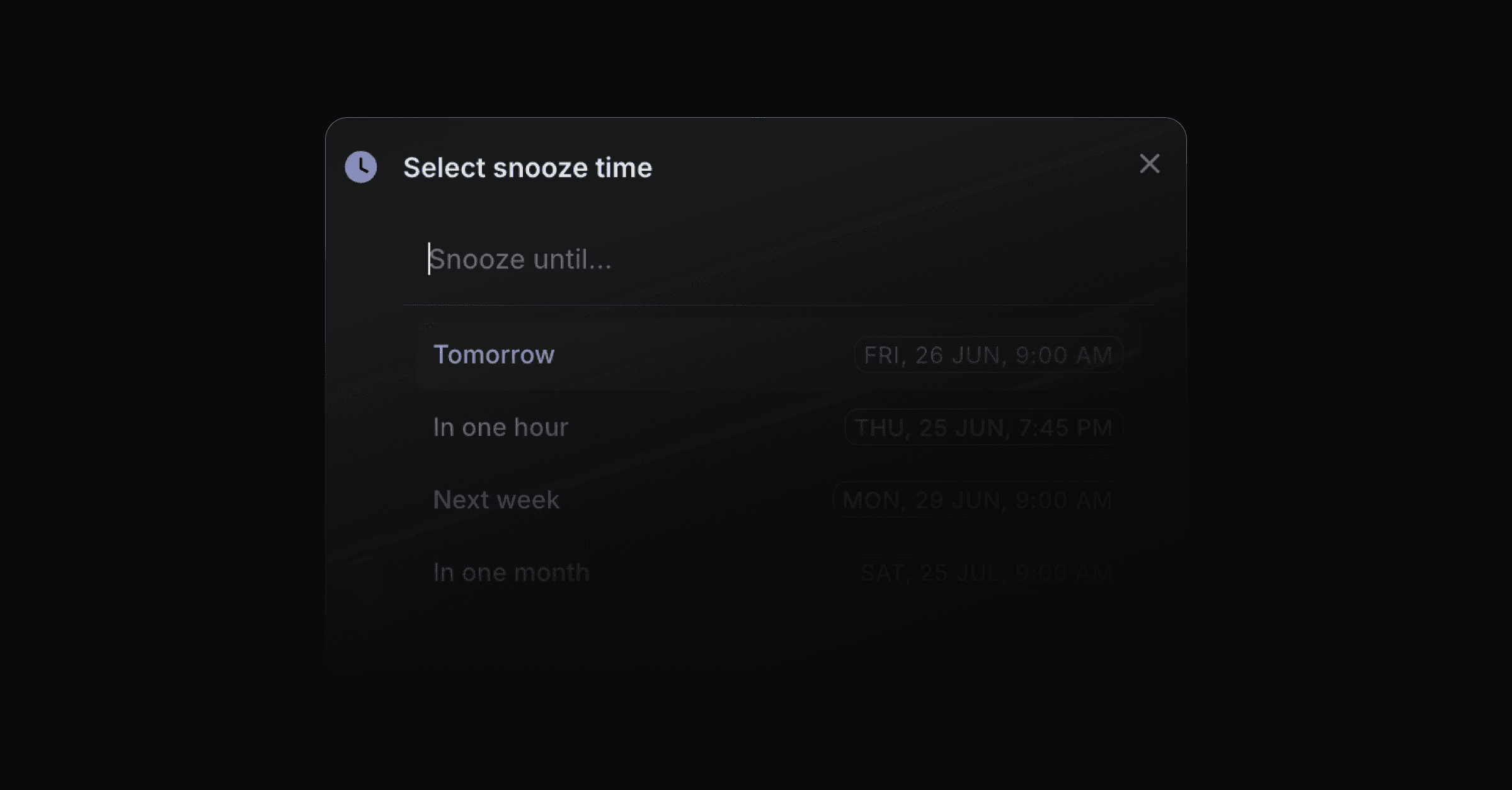
Snoozing hides a thread from your active inbox until a specific time. When that time arrives, the thread returns to your inbox so you can follow up. If the customer replies before the snooze ends, the thread comes back immediately.
Open a thread and click the clock icon in the thread header, or press H. Pick when it should come back. Quick options:
In one hour (now + 1 hour)
Tomorrow (tomorrow at 9:00 AM)
Next week (next Monday at 9:00 AM; selected by default)
In one month (one month from today at 9:00 AM)
You can also type a custom time in plain language ("friday 3pm", "in 2 days", "3 hours"). Both natural-language dates and "in X minutes/hours/days/weeks/months" phrasing are accepted.
After snoozing, a confirmation shows "Snoozed until [date, time]" with an Undo action and a Select different time action.
Snoozed threads drop out of the default view of every list. To see them, open the dropdown at the top of the thread list (it reads "Open" by default) and switch to Snoozed. That dropdown sits above New, Assigned to me, All, and SLA breached, and above any custom view, so you can check snoozed threads without leaving the tab you are working from.
In the Snoozed view, threads are sorted by when they were snoozed, most recent first.
Inside a snoozed thread, the clock button shows when it will come back ("Unsnoozing on [date, time]"). Click it or press H again to bring the thread back now.
At the chosen time the thread returns to your inbox automatically. It goes to the New view if it is unassigned. If the customer sends a new reply while a thread is snoozed, the thread comes back to your inbox right away, ahead of the scheduled time.
A snooze also ends early when a Linear issue or project linked to the thread is marked Completed or Canceled. The thread returns to your inbox so you can close the loop with the customer, ahead of the scheduled time.
Each snooze and return is recorded in the thread's activity history.