
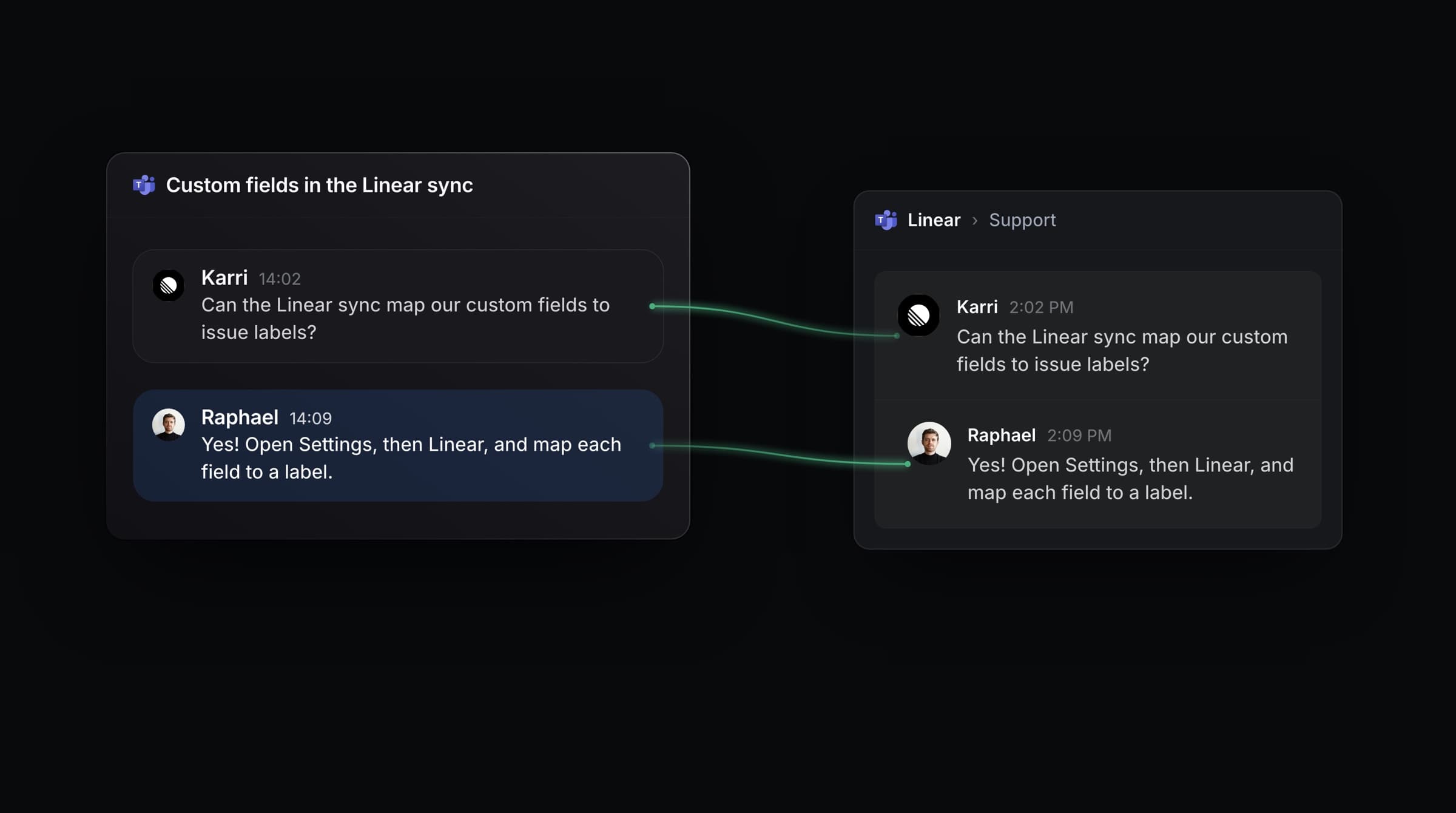
The Microsoft Teams integration syncs conversations from Teams channels and chats into Productlane. Add the Productlane bot to a team, and messages in its channels create threads that stay in sync.
Settings > Integrations > Teams.
The integration requires the Scale plan or higher. A "Scale" pill appears next to the Microsoft Teams title until the workspace is connected. Connecting requires a MEMBER or ADMIN role; Viewers cannot connect. On plans below Scale, the page shows an upgrade prompt in place of the connect button.
Shown when the workspace is below the Scale plan. It leads to the plan upgrade flow. The Connect button appears only once the workspace is on Scale or higher.
A button that downloads the Productlane Teams app package as a zip file. You upload this package in Microsoft Teams to install the app. The button appears both in the setup instructions before connecting and in the "Need to install the Teams app?" card after connecting.
Shown on Scale and up when Teams is not connected. It redirects you to Microsoft to authorize and link your Teams organization to this Productlane workspace. The button is hidden for Viewers. On success you see a "Microsoft Teams is now connected" confirmation and a green "Connected" badge next to the title.
Shown when Teams is connected. It opens a confirmation dialog titled "Disconnect Microsoft Teams?". Your data stays saved and the integration is disabled. Confirm with the "Disconnect" button.
An icon button next to Connect and Disconnect that opens the Teams help article.
After connecting, the page shows a card with the connected Tenant ID and a second card, "Need to install the Teams app?", with the download button and a reminder to upload it via Apps > Manage your apps > Upload a custom app.
Confirm the workspace is on the Scale plan or higher. If not, use the upgrade prompt first.
Click "Download Teams App (.zip)" to get the app package.
In Microsoft Teams, go to Apps > Manage your apps > Upload an app > Upload a custom app, and select the downloaded zip.
Add the Productlane bot to each team where you want to sync messages: go to the team > Manage team > Apps, search for Productlane, and add it.
Back in Productlane, click "Connect" to link your Teams organization to this workspace.
Messages in channels where the bot is installed will create threads in Productlane, and replies sync both ways.
Messages in Teams channels where the bot is installed sync into Productlane automatically.
Replies sent from Productlane appear in Teams, and replies in Teams appear in Productlane.
Threads can be linked to Linear issues.
Installing the Teams app package and connecting are two separate steps: upload the app in Teams first, then click Connect in Productlane.
Reconnecting: disconnect, then click Connect again to re-run the authorization.
The Tenant ID shown after connecting identifies the linked Microsoft organization.