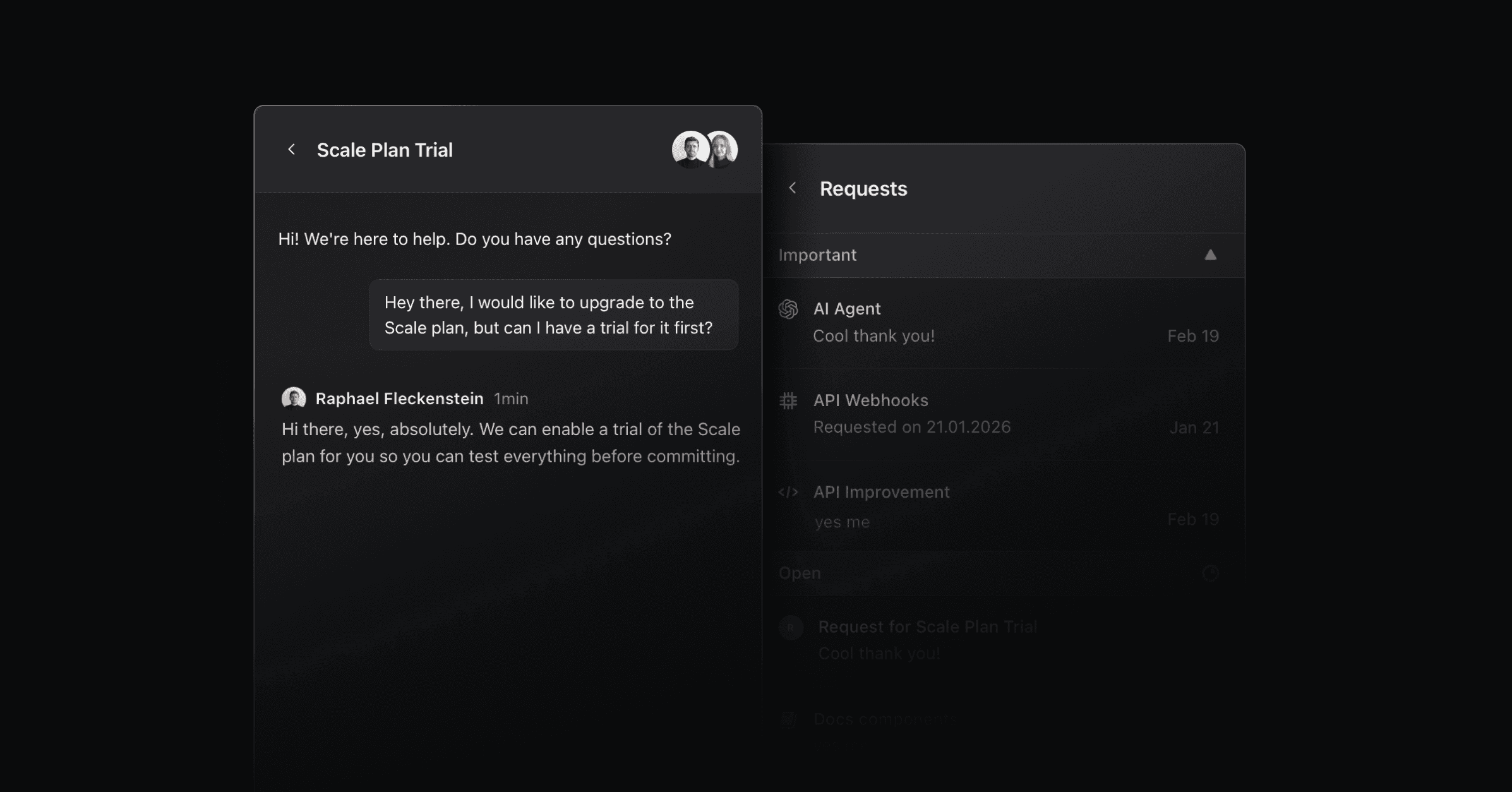
Live Chat lets customers talk to your team in real time inside the widget. Turn it on only if someone can staff it and answer within minutes.
With Live Chat on, the widget shows the chat in place of the feedback contact form, even when the widget's default view is Feedback. The same applies everywhere the form would appear, including submissions through the API.
Turn on Live Chat
Go to Settings > Widget and turn on Live Chat. The widget's contact form becomes a chat. Pass the user's email in your widget snippet so chats link to the right contact. See Widget.
Set a response time
Under Settings > Office hours & SLAs, turn on Response time and enter how many hours you aim to answer within.
Set office hours
On the same page, choose your timezone and the hours your team is available.
The line under your team's name in the widget header follows your office hours:
With no office hours set, it shows your response time, for example "We usually respond in 24 hours".
Inside your office hours, it says your team is available now.
Outside your office hours, it says when your team is back, in the visitor's local time.
When a customer asks the AI agent for a person and Live Chat is on, the conversation moves into Live Chat on the same thread. The customer sees a confirmation message and keeps reading one conversation. Your team sees the full history, AI messages included.
The agent's Talk with a human button, below the chat input, appears only when Live Chat is on. If a customer says the button is missing, check this setting before you debug the embed.
With Live Chat off, the same request still alerts your team and marks the thread high priority, but the customer stays in the AI chat.
See Productlane Agent for when the agent hands off, and Notifications to choose who gets alerted.
The widget API returns resumed: true when it appends a message to an existing live chat. That happens when the uploaded messages include an earlier AI, agent, or system turn. To start a fresh thread each time, upload only the visitor's own turns.
When a customer has not replied to a live chat message two minutes after your team sends it, Productlane emails them a copy. The timer counts elapsed time, so a customer who reads the message in the widget without replying still gets the email.
Productlane skips the email when:
a newer message already went out on the thread,
the contact has no primary email address, or
your workspace email settings are not configured.
The email comes from your teammate's first name at your workspace, with the thread title as the subject. It carries the message and the earlier conversation as a transcript, and it joins any earlier email thread with the customer.
Each message your team sends in Live Chat shows a check mark in the thread. A double check means the customer has read it, and hovering it shows Read at with the time. A single check means Unread.
While replying, type @ in the composer to search your help center and insert an article into the message.
Productlane has no mobile app. Two ways to answer on the go:
Mobile browser: sign in at productlane.com in your phone's browser and reply from there.
Slack: turn on Slack notifications, then follow and answer chats from the Slack mobile app. See Notifications.