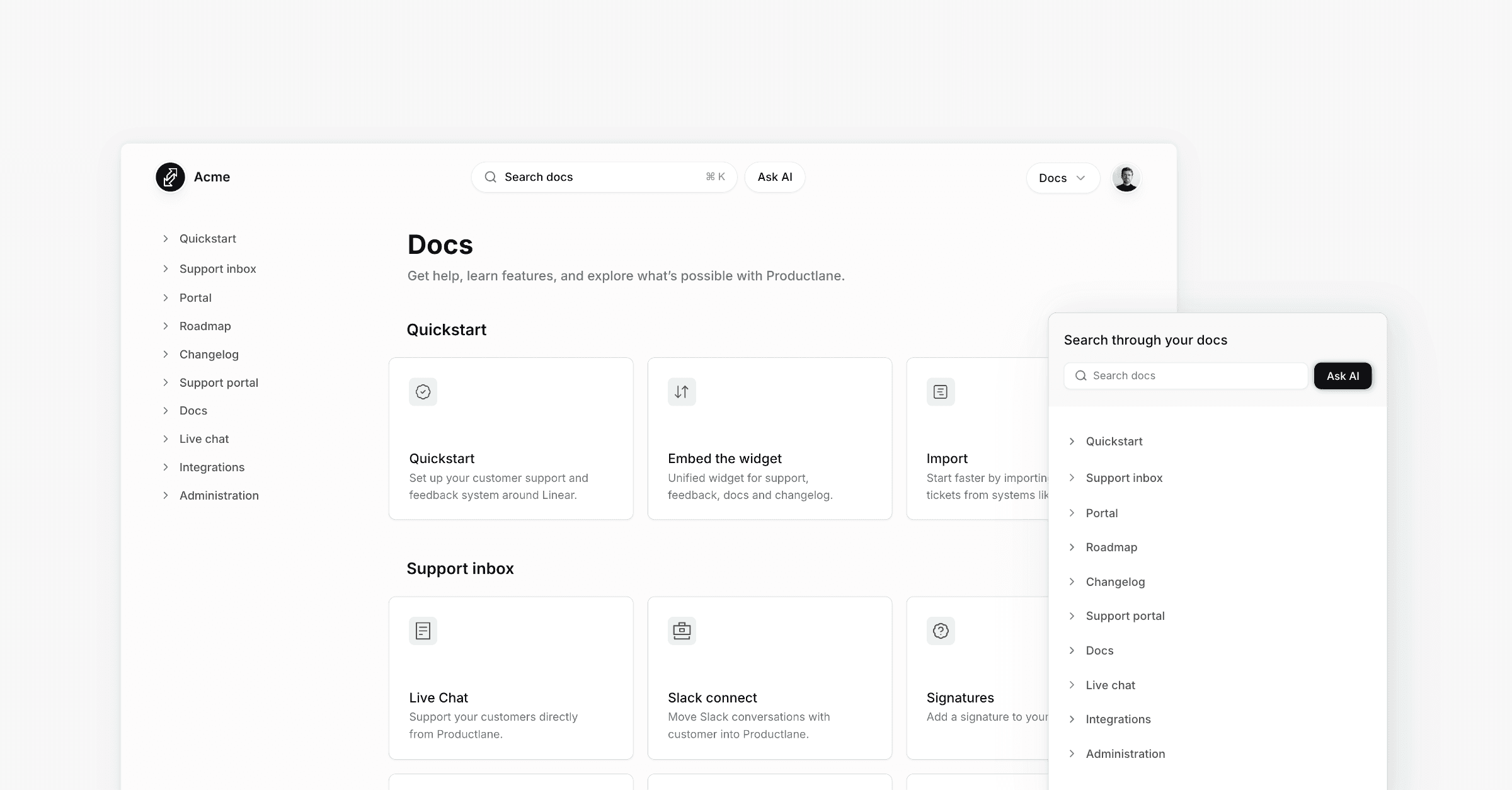
Each help center article has a visibility that decides who reads it: your customers, the AI agent, or only your team's AI Assistant. Set it from the visibility button on the article in the help center editor.
Public: shown on your docs site and in its search. The AI agent and the AI Assistant use it too.
Agent: kept off your docs site. The Productlane Agent answers from it, so customers get the answer without seeing the page.
Internal: only the AI Assistant reads it, when it helps your team draft replies. Customers and the Productlane Agent never see it.
The editor sidebar groups articles into Public, Agent, and Internal sections. The Internal section appears once it has an article.
The Productlane Agent never sends a customer a link to an Agent or Internal article, since neither has a public page.
An article can hold subpages one level deep. A subpage is never more visible than its parent:
Making a parent less visible moves its subpages with it. A toast says how many subpages changed, and Undo restores them.
A new article created under a parent takes the parent's visibility.
Dragging an article under a parent applies the parent's visibility to it.
Making a parent public again leaves its subpages as they are, so a subpage you set to Agent on purpose stays that way.
An external link is a sidebar entry that points to a page hosted elsewhere, such as a policy or a careers page. Add one from the + menu in the docs sidebar under External link.
External links never appear on your docs site. The AI agent and the AI Assistant read the page behind the link, and the agent cites it with its real URL.
Delete an external link, or any article, from its ... menu in the sidebar. Admins and members can delete; viewers cannot.