This feature is available on the Scale plan. View all plans
Sign customers in to your portal with your own login. You build one endpoint that signs a JWT and redirects back to Productlane.
If you run Multiple Portals, each portal can use its own connection. Settings > Portals > SSO lists the Root portal first, then every named portal, and shows whether each one is enabled, paused, or using the Root portal's connection. A portal with no connection of its own uses the Root portal's. Everything below applies to each portal separately.
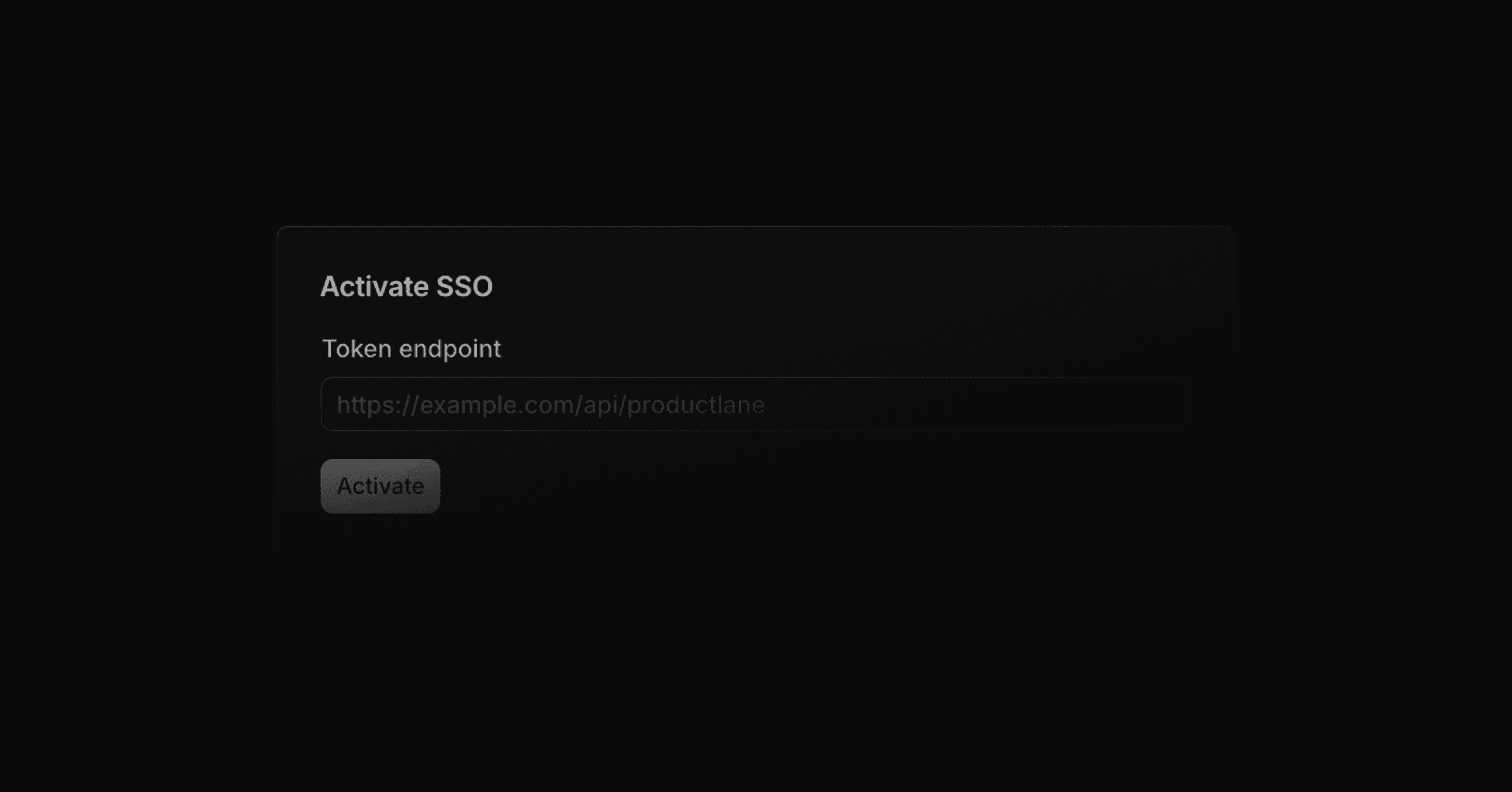
Open Settings > Portals > SSO, pick the portal, and enter the URL of your endpoint. Productlane generates a signing secret and shows it once. Click Copy and close and store it somewhere safe, since it will not be shown again.
import jwt from "jsonwebtoken"
import { NextApiRequest, NextApiResponse } from "next"

export default function handler(req: NextApiRequest, res: NextApiResponse) {
  // replace with your own session lookup
  const session = { email: "[email protected]", name: "Ada" }

  const token = jwt.sign(
    {
      email: session.email,
      name: session.name,
      imageUrl: "", // optional
      orgId: "", // optional, Productlane company id
      linearOrgId: "", // optional, Linear customer id
      tokenValidity: 15, // optional, in minutes
    },
    "pl_sso_...",
  )

  // send users back to the page they asked for
  const redirect = req.query.redirect
    ? `&redirect=${encodeURIComponent(String(req.query.redirect))}`
    : ""

  // custom domain
  res.redirect(`https://support.example.com/api/portal/sso?token=${token}${redirect}`)
  // or your Productlane subdomain
  // res.redirect(`https://example.productlane.com/api/portal/sso?token=${token}${redirect}`)
}Once the endpoint works, turn on Enable SSO on the portal's SSO page. Traffic starts going to your endpoint right away.
With SSO active, choose which parts of the portal need a login.
Turn on Make entire portal private to require a login everywhere. The portal is then left out of search engines: robots.txt, the sitemap, and noindex tags all exclude it.
To require a login only in some sections, leave the whole portal public and turn on the section toggles:
Toggle | Section |
|---|---|
Make Docs private | Docs and help center |
Make Feature requests private | Roadmap and feature requests |
Make Changelog private | Changelog |
Make Support Portal private | Support portal |
Each private section is left out of search engines the same way.
Click Rotate secret in the Credentials section of the portal's SSO page. The old secret stops working at once, so logins fail until your endpoint signs with the new one. Rotate when you can update the endpoint straight away.
Productlane assigns users to a company by their email domain. To override that, add one of these optional fields to the JWT:
orgId: the Productlane company id
linearOrgId: the Linear customer id
Use this when a user's email domain does not match their company.
When a signed-out user opens a specific page, Productlane passes a redirect parameter to your endpoint. Pass it back in your redirect, as in the example above, to return users to the page they opened.