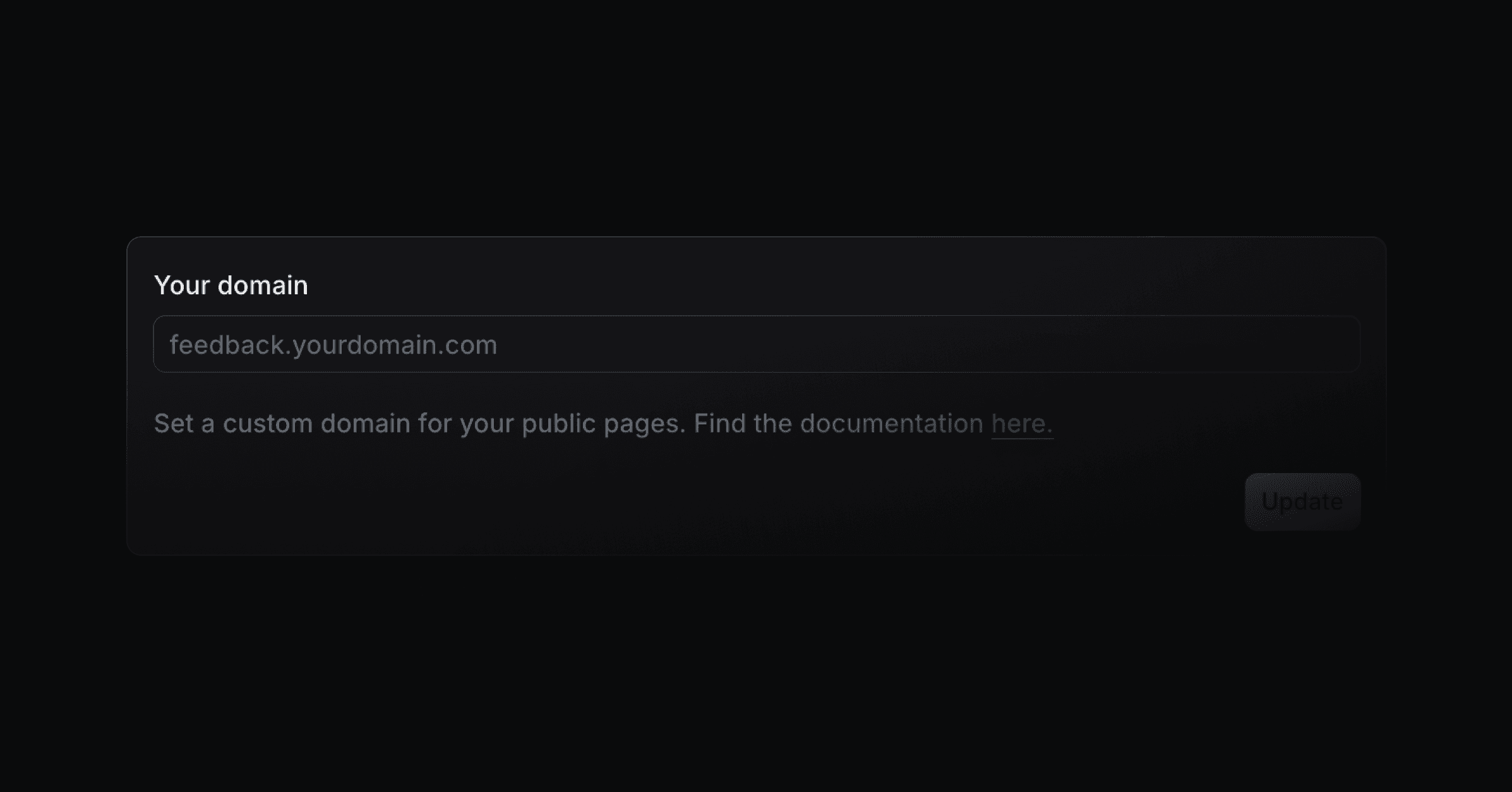
Serve your public Productlane portal from a domain you own, such as support.acme.com.
If you run Multiple Portals, a named portal can carry its own domain instead of the workspace domain below. Set that from that portal's own settings page.
Enter the domain
Open Settings > Portals > Custom domain and enter the domain you want to use. The subdomain can be anything, for example support or roadmap.
Add the CNAME record
At your DNS provider, add a CNAME record for that subdomain. The settings page shows the exact target. It follows the pattern <your-workspace>.customers.productlane.com.
Your DNS settings usually live with the company you bought the domain from.
Wait for the certificate
You do not need a TXT record. Once the CNAME resolves, Cloudflare verifies the domain and issues the SSL certificate over HTTP. This usually takes a few minutes.
If you added _acme-challenge TXT records during an earlier setup, you can delete them. Productlane no longer uses them.
To switch to a different subdomain later, update both the domain in Productlane and the CNAME record at your DNS provider.
Some registrars, Squarespace among them, add your domain to the end of every record name. If you type portal.example.com in the name field, the record becomes portal.example.com.example.com. Enter only the subdomain label, for example portal, in the name field of the CNAME record.
The status page can keep saying "Your DNS is correct, the certificate is on its way" for a certificate order that has stalled. Refresh domain status checks the status again. It does not restart the order.
If the certificate is still pending an hour after the CNAME is in place, waiting longer does not help. Delete the domain and add it again:
Click the trash icon next to the domain, then click Delete domain.
Enter the same domain again.
Leave the CNAME record exactly as it is.
The certificate usually follows within a few minutes. Your portal stays available on its productlane.com address the whole time.
If the certificate is still pending after you delete and re-add the domain, email [email protected] with the domain name.
The custom domain has no valid certificate yet. Check the domain status in Productlane first. If the certificate is pending, follow the steps for a certificate pending for more than an hour. If your DNS is hosted on Cloudflare, check the proxy status as well (see below). If your domain has CAA records, check those too.
Productlane can't find a CNAME that matches the target on the settings page. Check these two things at your DNS provider:
The host is only the subdomain, for example portal. Some providers add the root domain automatically (see Squarespace above).
The value is the exact target the settings page shows for your workspace.
This applies only if Cloudflare hosts your DNS. If your DNS is with another provider, such as AWS Route 53, skip this part.
Set the CNAME record's Proxy status to DNS only (grey cloud). A proxied record causes SSL errors such as "525: SSL handshake failed".
To change it, go to dash.cloudflare.com > Websites > your domain > DNS, find the record that points to productlane.com, click Edit, and turn the proxy off:

If your domain has CAA records, they must allow all three certificate issuers:
0 issue "letsencrypt.org"
0 issue "pki.goog"
0 issue "ssl.com"
To check your CAA records, run dig CAA example.com or use any online DNS lookup tool.