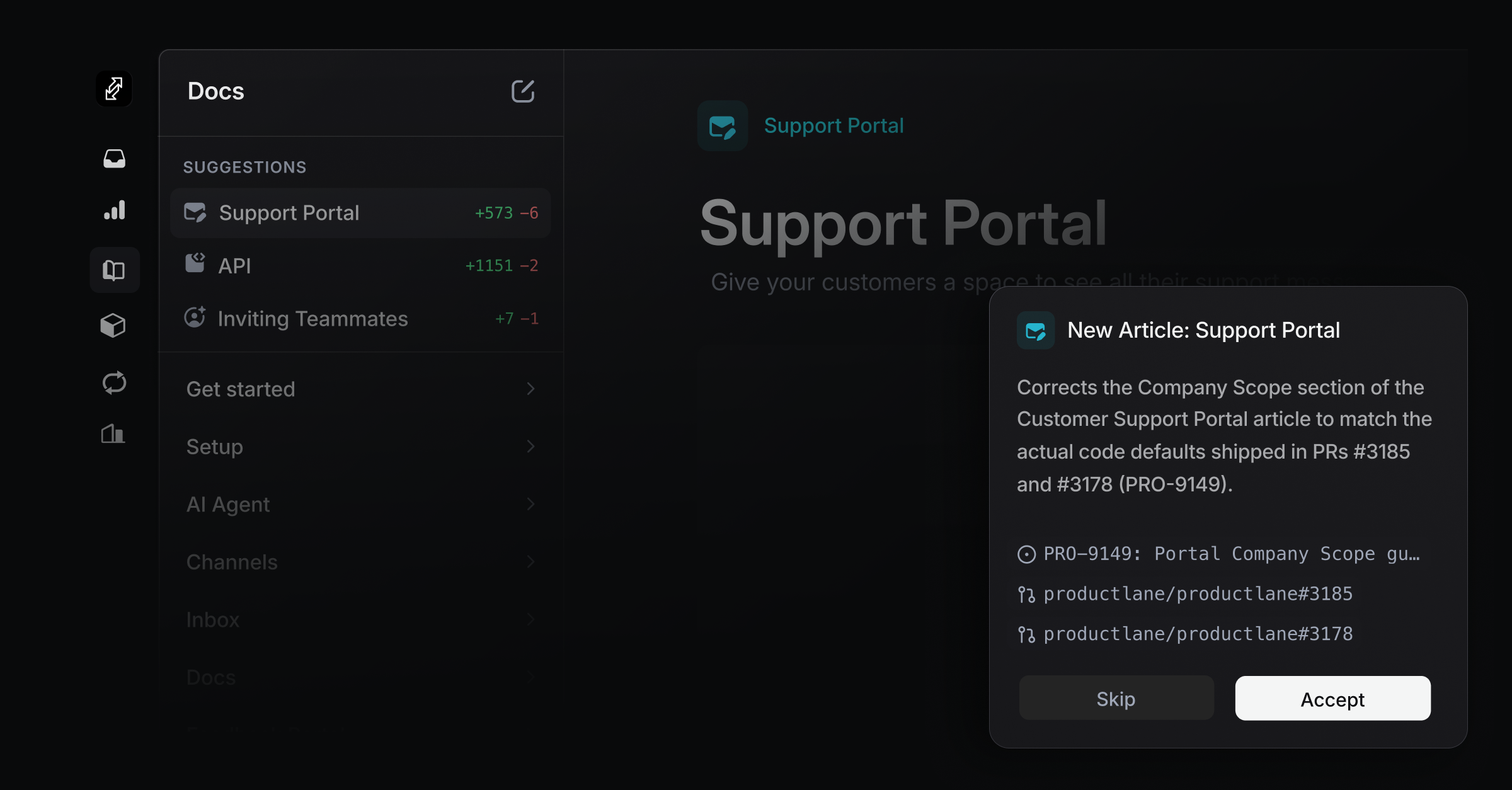
The SUGGESTIONS panel at the top of your docs sidebar shows article proposals the Productlane Agent has drafted for you. Each proposal is a new article, an edit to an existing one, or a deletion of stale content. This works for both public and unlisted articles.
Self-updating docs is off by default. To enable it, go to Settings, Docs, and toggle on Self-updating docs. Once enabled, the agent starts drafting article proposals from merged pull requests, commits to your default branch, and shipped Linear issues as they come in. Turning the toggle off stops new suggestions from being generated; any suggestions already in the panel stay there for review.
Once Self-updating docs is on, a "Custom instructions" textarea appears in Settings, Docs. Use it to tell the agent how to write your docs, for example to write in second person, open every article with a one-sentence summary, or skip internal-only flags. It saves automatically a moment after you stop typing, or immediately when you click away from the field. Leave it empty to use the agent's default writing style.
Once Self-updating docs is on, a Draft frequency selector appears in Settings, Docs. It controls how often the agent turns shipped pull requests, commits, and completed issues into proposals.
Option | What it does |
|---|---|
After each merge | Evaluates each change on its own, within minutes of it shipping. |
Daily | Collects everything that shipped since the previous day and gates it as one batch each morning. |
Weekly | Collects a full week of changes and gates them as one batch, timed to arrive with the Monday digest. |
The default is Weekly. Issue-completed proposals follow the same setting: on Daily or Weekly, a completed issue waits for the next batch instead of triggering its own evaluation.
With After each merge selected, there is no fixed schedule: the agent reacts to individual events as they happen.
A pull request is merged into your default branch.
A commit is pushed directly to your default branch.
A Linear issue linked to your repo is marked done and its code has shipped.
A cluster of customer threads in your inbox asks the same question your docs don't answer.
Each of these triggers its own evaluation within minutes, not on a timer.
With Daily or Weekly selected, the agent does not evaluate each merge, commit, or completed issue on its own. Instead it collects everything from the chosen window and gates it in a single batch, so you get one set of drafts per day or per week instead of a stream of individual ones. Customer thread clusters still get evaluated on their own pace either way.
Either way, the pace of suggestions tracks the pace of your shipping and your inbox: a week with few merges, few shipped issues, and few repeat questions is a week with few or no new suggestions. This is expected behavior, not a stalled feature. If you want more suggestions sooner, the fastest lever is linking more PRs and issues to threads (see Getting better suggestions below), or switching Draft frequency to After each merge.
A merged pull request is only evaluated once, even though merging it also produces a push to the default branch.
The Productlane Agent watches customer threads in your inbox. When several customers ask the same question and the answer is missing from your docs, the agent drafts a new article. When a feature changes and an existing article goes out of date, the agent drafts an edit. When a deprecated feature is referenced in a stale article, the agent proposes a deletion.
On the code side, the agent evaluates your connected repository whenever a pull request is merged into the default branch and whenever a commit lands directly on the default branch.
Every suggestion comes with:
A draft of the new or updated article.
The rationale: why the agent thinks this change is needed.
The source threads or product changes it pulled from, linked inline on the proposal card.
Each row in the panel shows a line diff so you can see how much the article is changing at a glance.
+173 means 173 lines added.
-39 means 39 lines removed.
A row with only a green + is a new article.
A row with only a red - is a proposed deletion.
Click any row in the SUGGESTIONS panel to open the proposal. You'll see:
The proposed article body, side-by-side with the existing version if there is one.
The agent's reasoning at the top.
Source chips at the top of each proposal card showing where the suggestion came from.
Accept and Reject buttons.
The suggestion diff itself is read-only. You cannot type into it or reword a sentence in place, even as an admin. If part of the suggestion is not quite right, you have two options: skip that specific change (see Accepting only selected changes below) or accept the suggestion as drafted and then edit the published article afterward like any other article. Rejecting a suggestion dismisses it entirely and tells the agent to leave that article alone.
Each proposal card shows small chips that link to the sources that triggered it. There are three kinds of source:
Conversation chips (message icon): customer threads from your inbox that the agent clustered together to identify the docs gap. Clicking a chip opens the thread inside Productlane so you can read the original conversation.
Issue chips (circle-dot icon): completed issues that were linked to the change, shown in monospace.
Pull request or commit chips (git icon): PR or commit references from your connected repository, shown in monospace. These open in a new tab.
When multiple customer conversations are merged into a single docs gap cluster, every contributing thread gets its own chip. If a thread has no title, the chip falls back to the label Conversation.
Each proposal is split into atomic hunks: the individual, contiguous edits it makes to the article. You do not have to take all of them. To cherry-pick:
Hover over any highlighted diff region in the article preview. A small Skip button appears above it.
Click Skip to discard that hunk. The preview updates immediately to show what the article will look like without it.
To undo a skip, find the proposal card in the review rail (it shows how many hunks are skipped) and click Restore.
Click Accept. Only the non-skipped hunks are written to the article.
Skipping a hunk removes it entirely rather than rewording it. If a hunk is mostly right but needs a tweak, accept it and fix the wording on the published article afterward.
The agent's draft quality improves with:
More threads coming through your inbox. The agent learns from real customer language.
Linked GitHub issues and PRs on threads. The agent uses these to spot product changes that need docs.
A complete set of docs to start with. The agent uses your existing articles' voice and structure as a reference.
Custom instructions that spell out your house style. See "Custom instructions" above.
To pause suggestions, go to Settings, Docs, and toggle off Self-updating docs. Existing open proposals stay in the panel for review; new ones stop generating.
On the After each merge cadence, self-updating docs fires per event with no timer. On Daily or Weekly, suggestions arrive in one batch at the end of the window instead of trickling in. Either way, if your team merges few pull requests, ships few Linear issues, or your inbox has few repeated questions, there is simply nothing new for the agent to react to. Check that your GitHub repo is connected in Settings, Integrations, GitHub, and that threads are linked to the issues or PRs that resolve them. More linked activity means more suggestions, sooner.
No. The suggestion diff is intentionally read-only for everyone, including admins. You can skip individual highlighted changes you do not want, or accept the suggestion as drafted and edit the published article afterward.
Yes. Open the proposal and hover over any highlighted diff region. A Skip button appears above that section. Click it to exclude that change from the acceptance. Repeat for any other sections you want to ignore, then click Accept. Only the hunks you did not skip are written to the article. See the Accepting only selected changes section above for the full steps.
Yes. Use the Custom instructions textarea in Settings, Docs, once Self-updating docs is on. See "Custom instructions" above.
Yes. Your docs live in Productlane as their own set of articles. You do not build them by hand like a wiki, Productlane keeps them current from your customer threads and your connected code.
Connect your repository in Settings, Integrations, GitHub, and turn on Self-updating docs in Settings, Docs. From then on, every pull request merged into your default branch and every commit pushed directly to it produces draft articles and edits in the SUGGESTIONS panel, on the schedule set by Draft frequency, so your docs follow what you ship.
Yes. Articles can be translated automatically, and a reader sees your docs in their own browser language.
No, it is part of your plan. Keeping it accurate also lifts the Productlane Agent's resolution rate, since the agent answers customers from your articles.