
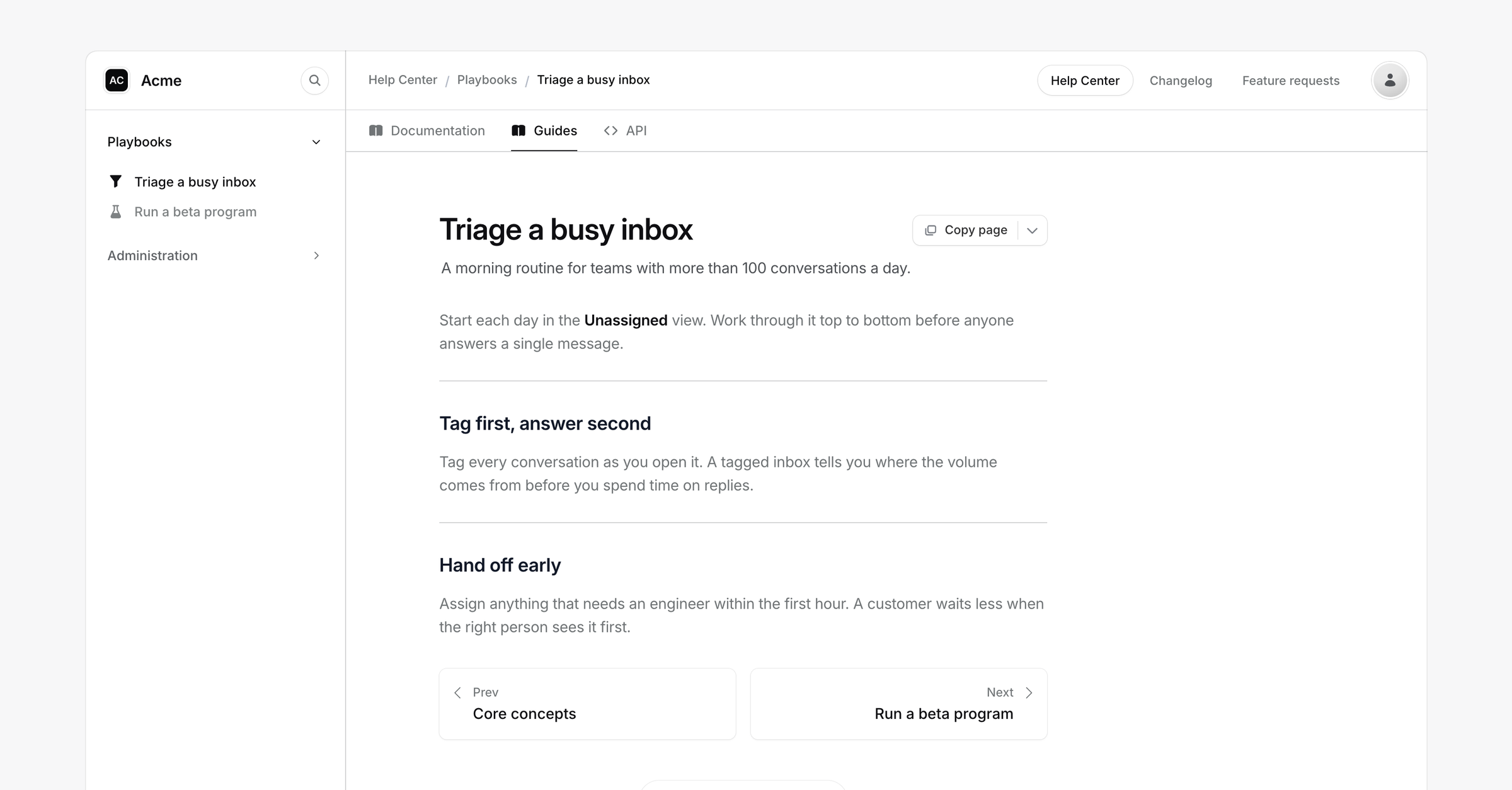
Tabs split your docs site into sections, like Documentation, Guides and API. Each tab has its own sidebar, so readers only see the groups that belong to the section they picked.
These are the sections of your docs site. To split one article into panels, use the Tabs block from the editor components instead.
The Documentation tab
Every docs site starts with one tab, Documentation. It holds every group you haven't moved into another tab. It always comes first, and it can't be renamed or deleted.
Readers see a tab switcher once you publish a second tab.
Add a tab
Open Docs and click + at the end of the tab bar.
Pick New tab.
Choose an icon, type a name of up to 40 characters, and click Create tab.
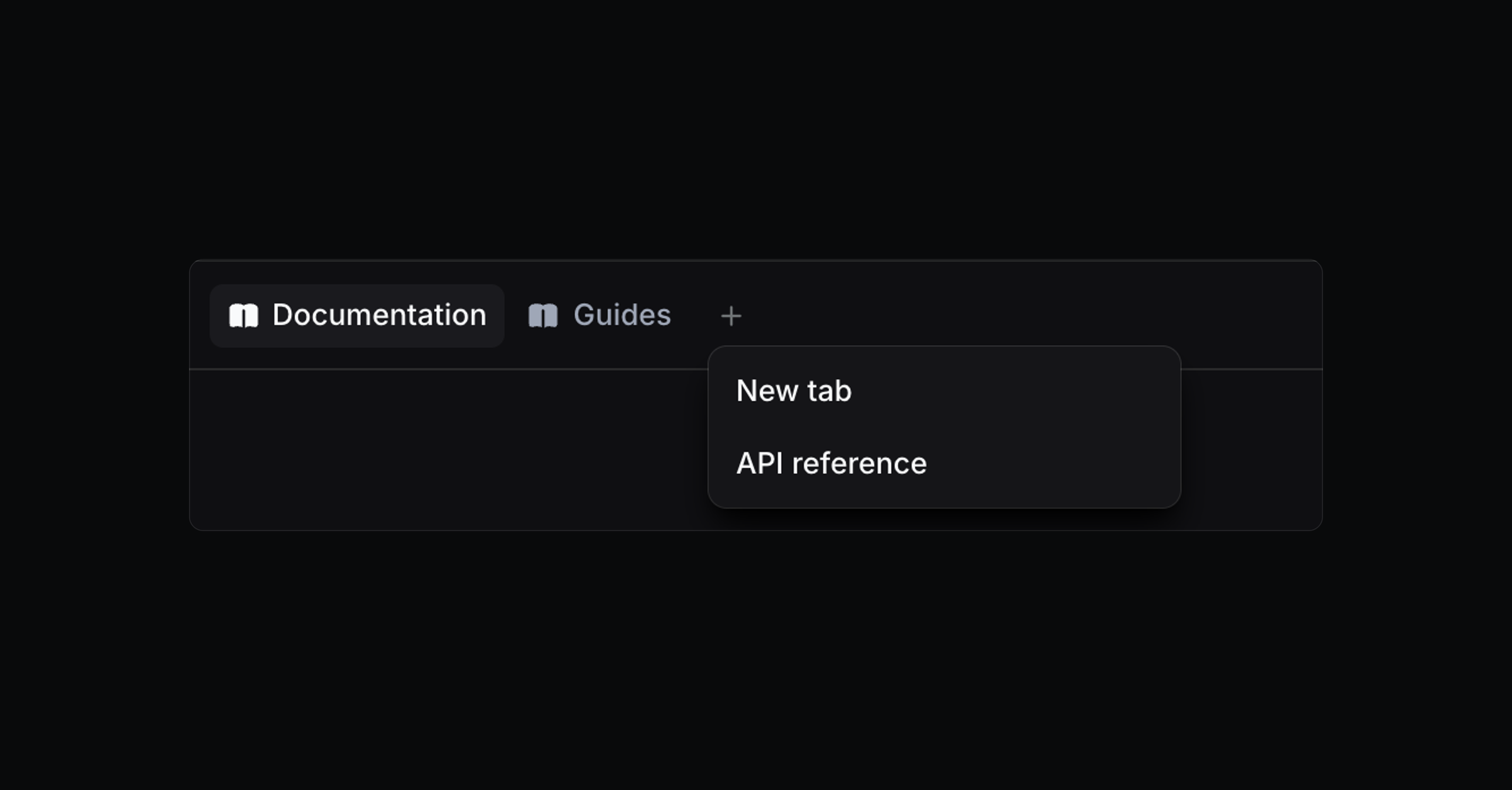
The dialog will ask for an icon and a name.
A new tab starts as a draft and carries a Draft badge. Readers see it once you publish it from the tab menu.
API reference in the same menu builds a tab from an OpenAPI spec. See API reference from OpenAPI.
Fill a tab
Click a tab in the editor to open it. New groups and articles you create go into the tab you have open.
To move a group you already have, open its ... menu in the sidebar, choose Move to tab, and pick the tab. Its articles move with it.
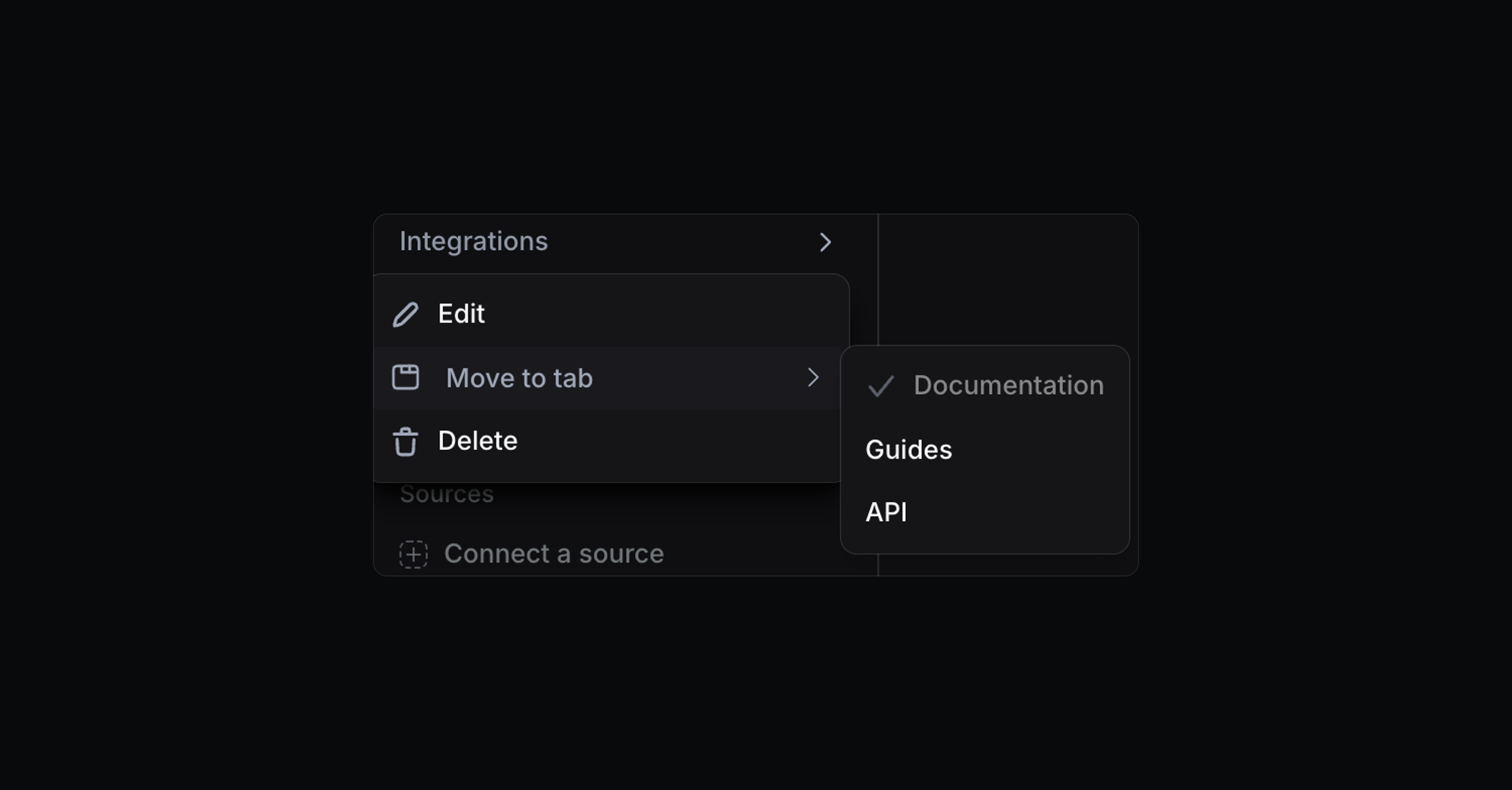
A tab has no address of its own, so moving a group keeps every article's URL the same. Links you shared before still work.
Edit, publish or delete a tab
Hover a tab and click ..., or right-click it.
Edit changes the name and the icon.
Publish tab shows the tab to readers. Unpublish tab hides it again while you rework it.
Delete removes the tab.
On the API tab, the same menu also has Settings for the reference's source and sync.
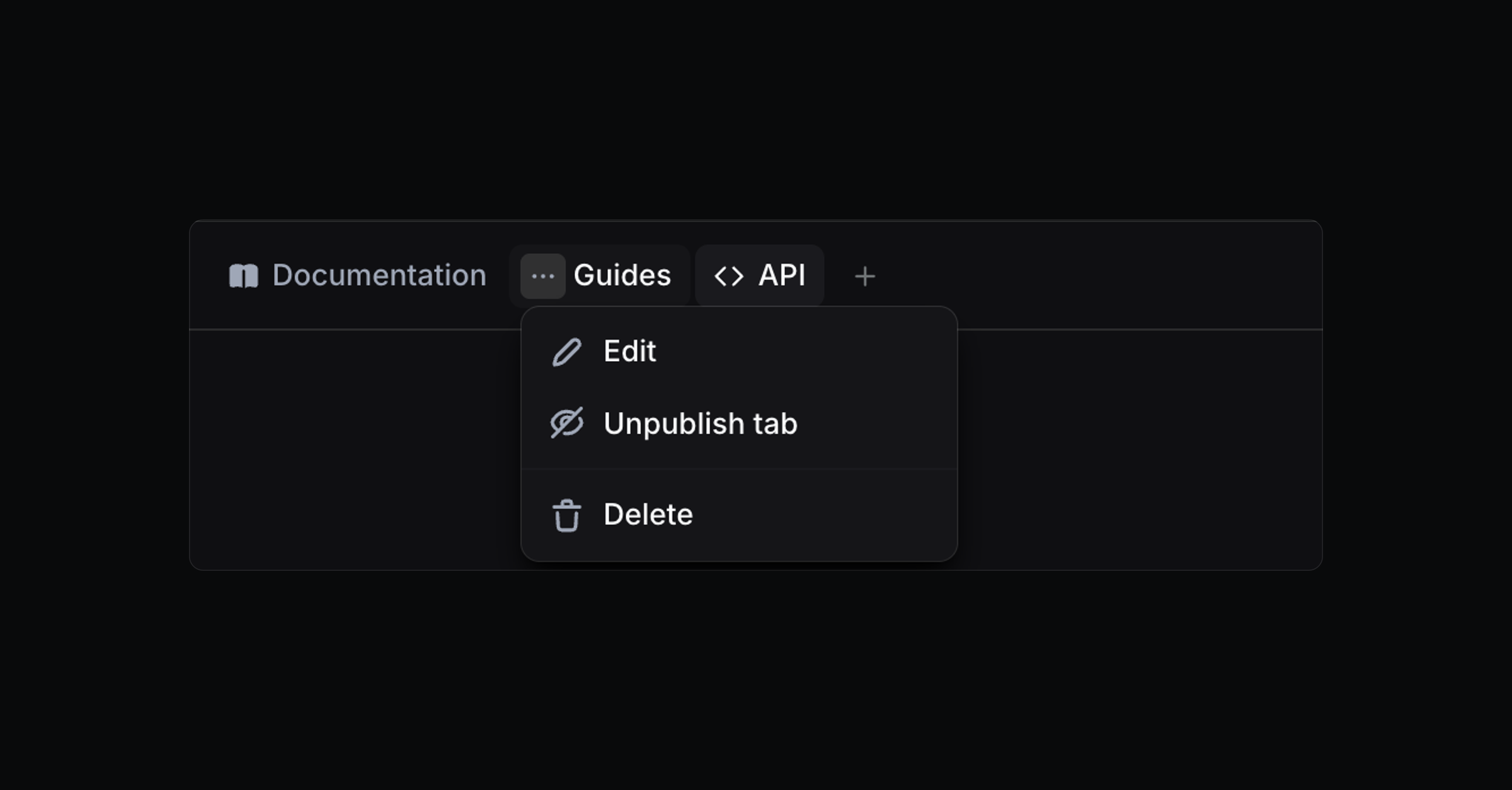
Deleting a tab moves its groups and articles back to Documentation. Articles from an unpublished tab become visible to readers there, so move or unpublish anything that isn't ready first.
Drag a tab to change the order. Tabs that don't fit in the bar collect in a More menu.
Choose how readers switch tabs
Pick a style in Settings → Docs → Navigation → Tab style.
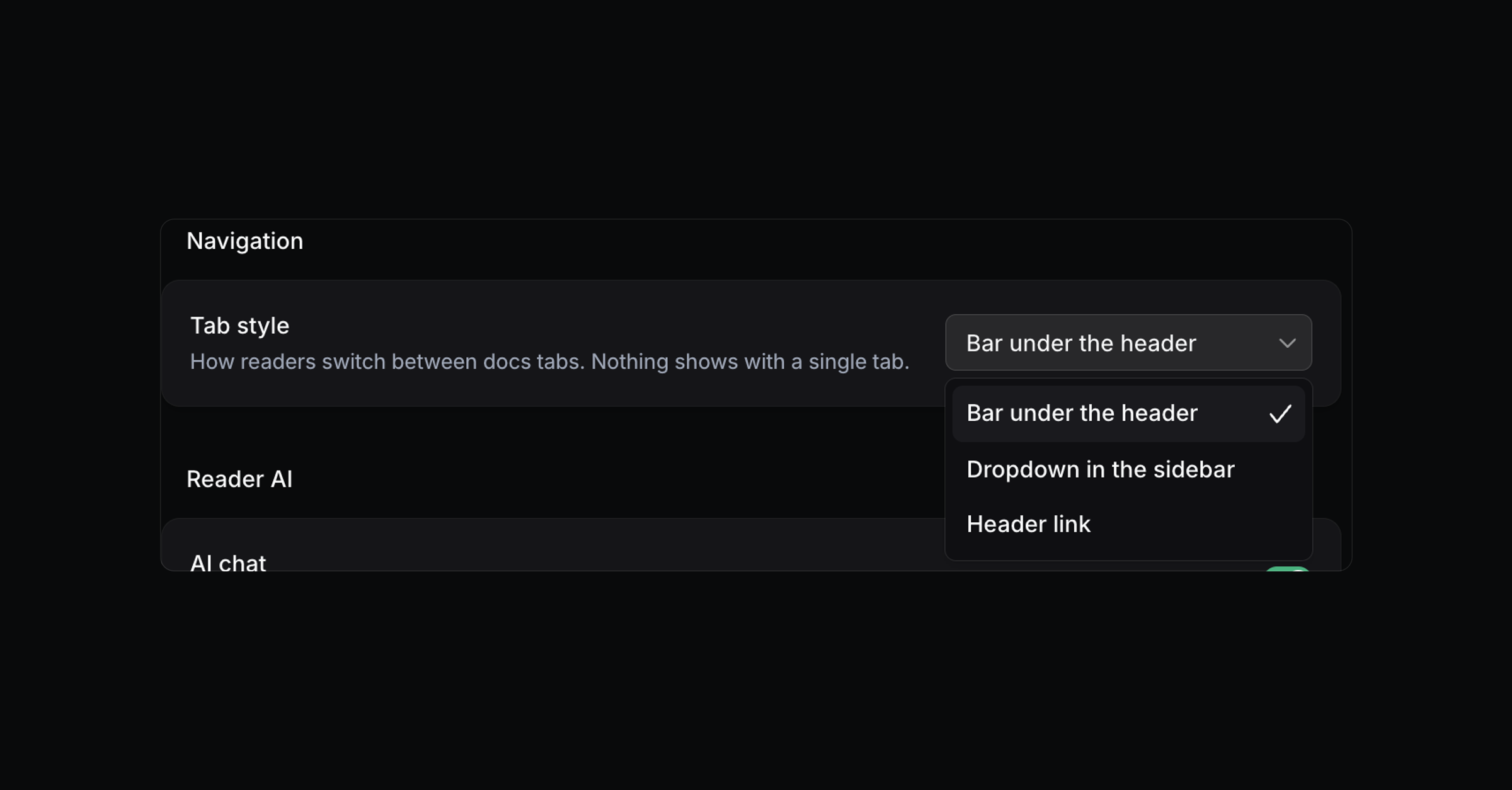
Style | What readers see |
|---|---|
Bar under the header | A row of tabs above the article. This is the default. |
Dropdown in the sidebar | A tab picker at the top of the sidebar. |
Header link | No tab switcher. The API reference gets a link in the portal header, next to your docs. |
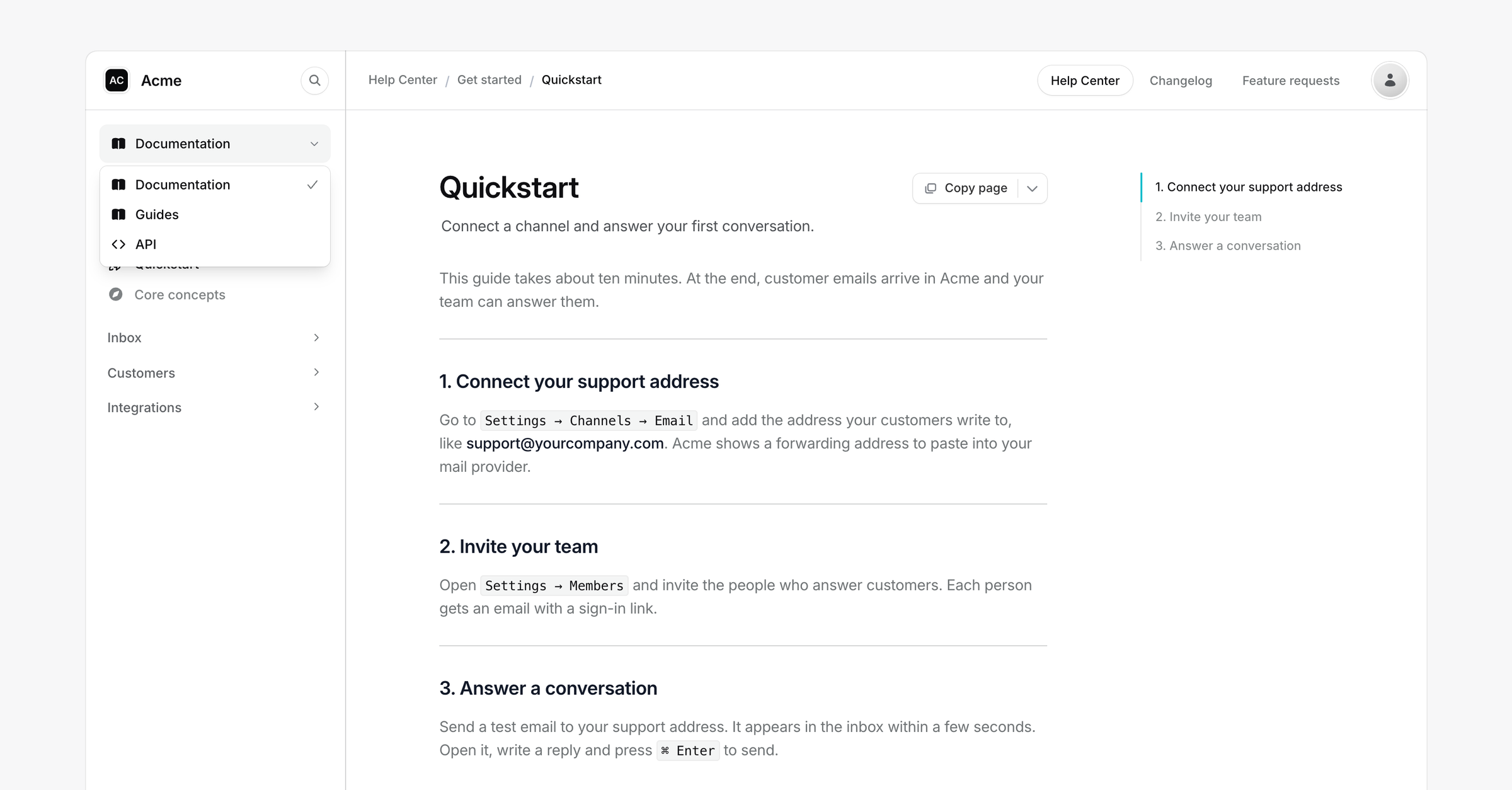
Header link suits a docs site with one set of articles and an API reference. It needs your custom tabs gone: move their groups back to Documentation and delete the tabs first. While Header link is on, New tab stays off.
On phones and in the widget
On a phone, the bar scrolls sideways and the dropdown sits above the page.
In the widget, the help center title turns into a tab picker once two or more tabs have articles.
Tabs and portals
Each portal has its own tabs. A group has to belong to a tab's portal before it can move into that tab.
Tabs through the API
The v2 API manages tabs under /docs/tabs, from creating one to publishing it. To put a group in a tab, pass tab_id when you create or update the group. A tab_id of null puts it in Documentation.
The MCP server has the same tools, from docs_list_tabs to docs_delete_tab.
Common questions
Why don't readers see my tabs?
Check that the tab is published, since a draft tab stays hidden. The switcher also stays hidden while Documentation is the only published tab, or while the tab style is Header link.
Do article URLs change when I move a group to another tab?
No. Tabs have no address of their own, so every article keeps its URL.
Can I rename the Documentation tab?
Not yet. Documentation is built in, so it keeps its name and its place at the start of the bar.
Can I translate tab names?
Not from the dashboard yet. Readers see each tab name as you typed it.