Notification settings control how Productlane reaches you personally, by email and by Slack. Every toggle is per user, so your choices affect only your own notifications, not your teammates'.
Go to Settings > Notifications. The page lists two channels, Email and Slack, each marked Enabled or Disabled, with a link to its own settings. Every role, Viewers included, manages their own notifications here.
Open Settings > Notifications > Email.
An "Email notifications" switch at the top turns every email event on or off at once. It shows as enabled as soon as any single event underneath is on, and its description names the address the emails go to.
Below that, individual toggles cover:
New feedback: when new feedback is submitted.
Productlane Agent handoffs: when the Productlane Agent tells a customer the team will follow up. On by default.
New replies: when someone replies to a thread assigned to you.
Comment mentions: when you're mentioned in a comment.
Assignment changes: when thread assignments change.
Unassigned thread replies: when someone replies to a thread that has no assignee.
New changelog draft: when a new changelog draft is created.
Daily summary of new upvotes: a daily email summarizing upvotes on your portal.
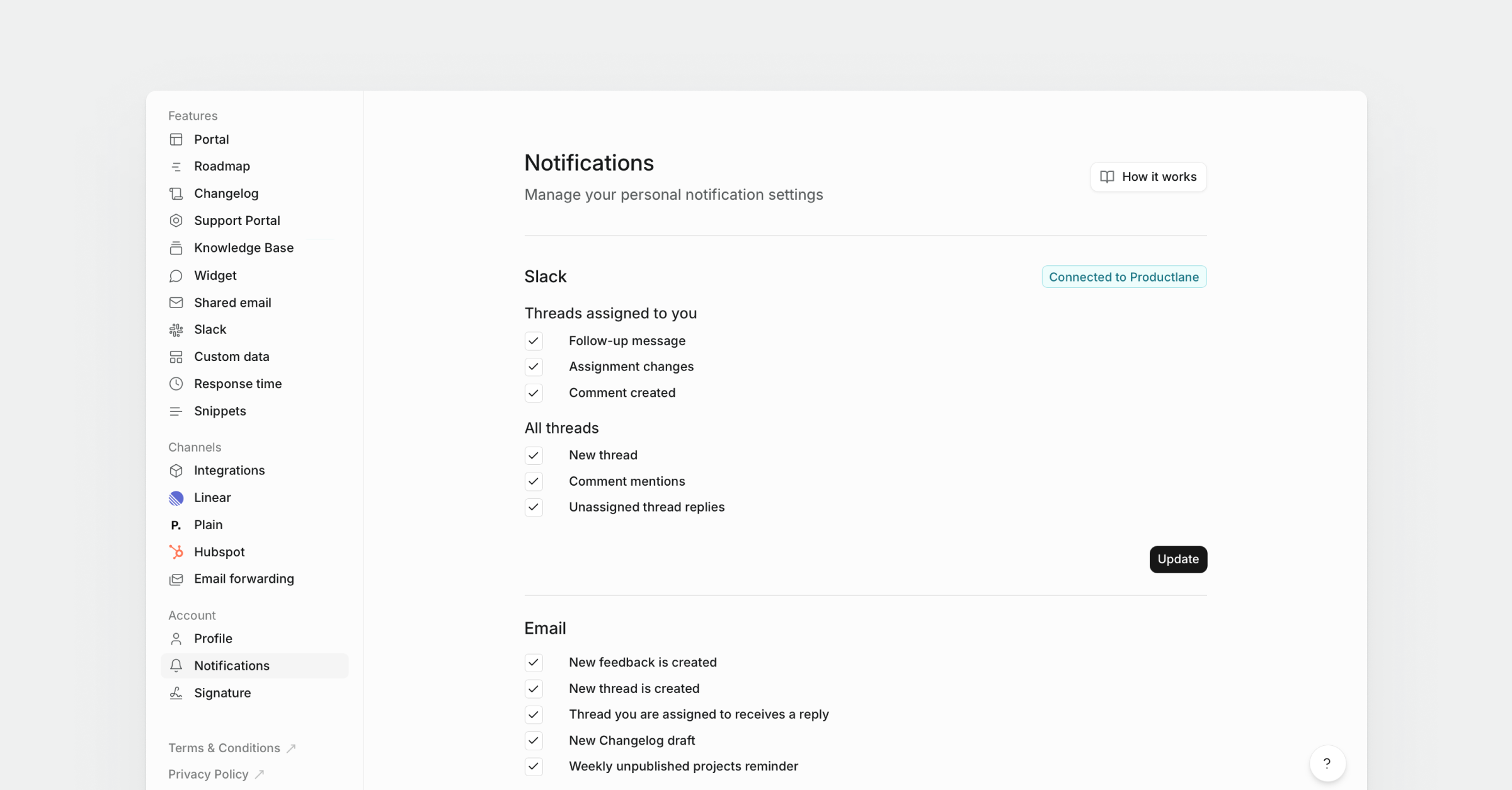
Open Settings > Notifications > Slack.
If your account isn't connected to Slack, this page shows a "Connect Slack" button that starts the Slack authorization flow for personal notifications.
Once connected, a "Slack notifications" switch at the top turns every Slack event on or off at once, and its description names the connected Slack workspace. Individual toggles are grouped into two sections.
Threads assigned to you:
Follow-up message: when someone follows up on your assigned threads.
Assignment changes: when thread assignments change.
Comment created: when new comments are added to your threads.
All threads:
New thread: when a new thread is created in the workspace.
Productlane Agent handoffs: when the Productlane Agent tells a customer the team will follow up. On by default.
Comment mentions: when you're mentioned in a comment.
Unassigned thread replies: when someone replies to a thread that has no assignee.
At the bottom of the page, a "Disconnect" button removes your personal Slack notification settings after you confirm. You can reconnect at any time to turn Slack notifications back on.
The Inbox, Email, and Slack notification pages each start with a "Reply times" group. It holds three toggles, so you can switch each one on or off per channel (in-app inbox, email, or Slack DM):
Reply time missed: when a thread gets no reply within your workspace's maximum response time.
SLA at risk: when a thread's SLA is close to its deadline.
SLA breached: when a thread breaches its SLA.
The assignee gets these notifications. For an unassigned thread, they go to everyone who opted in for all threads. Productlane sends them only to people personally and never posts them in a shared Slack channel.
Go to Settings > Notifications.
Open Email to turn on the events you want, or flip the top "Email notifications" switch to enable or disable all of them at once.
Open Slack, click "Connect Slack" if you haven't already, then turn on the events you want under "Threads assigned to you" and "All threads".
Email and Slack are independent. For events that exist in both, such as comment mentions, assignment changes, and agent handoffs, turn on one channel, both, or neither.
A handoff shows as "Productlane Agent handed this conversation to the team" in the thread's timeline.
These settings are personal. Workspace-wide Slack notifications live under Settings > Integrations > Slack.