Productlane
Productlane
  • Docs
  • Changelog
  • Feature requests
  • Support portal
    • Linear
    • API
    • MCP
    • Productboard importer
    • Cursor
    • Attio
    • Youtube
    • Hubspot
    • Loom
    • Google Analytics
    • Zendesk importer
    • Zapier
    • GitHub
    • Webhooks
Docs / Integrations

Cursor

Auto-assign Linear issues to Cursor
Cursor

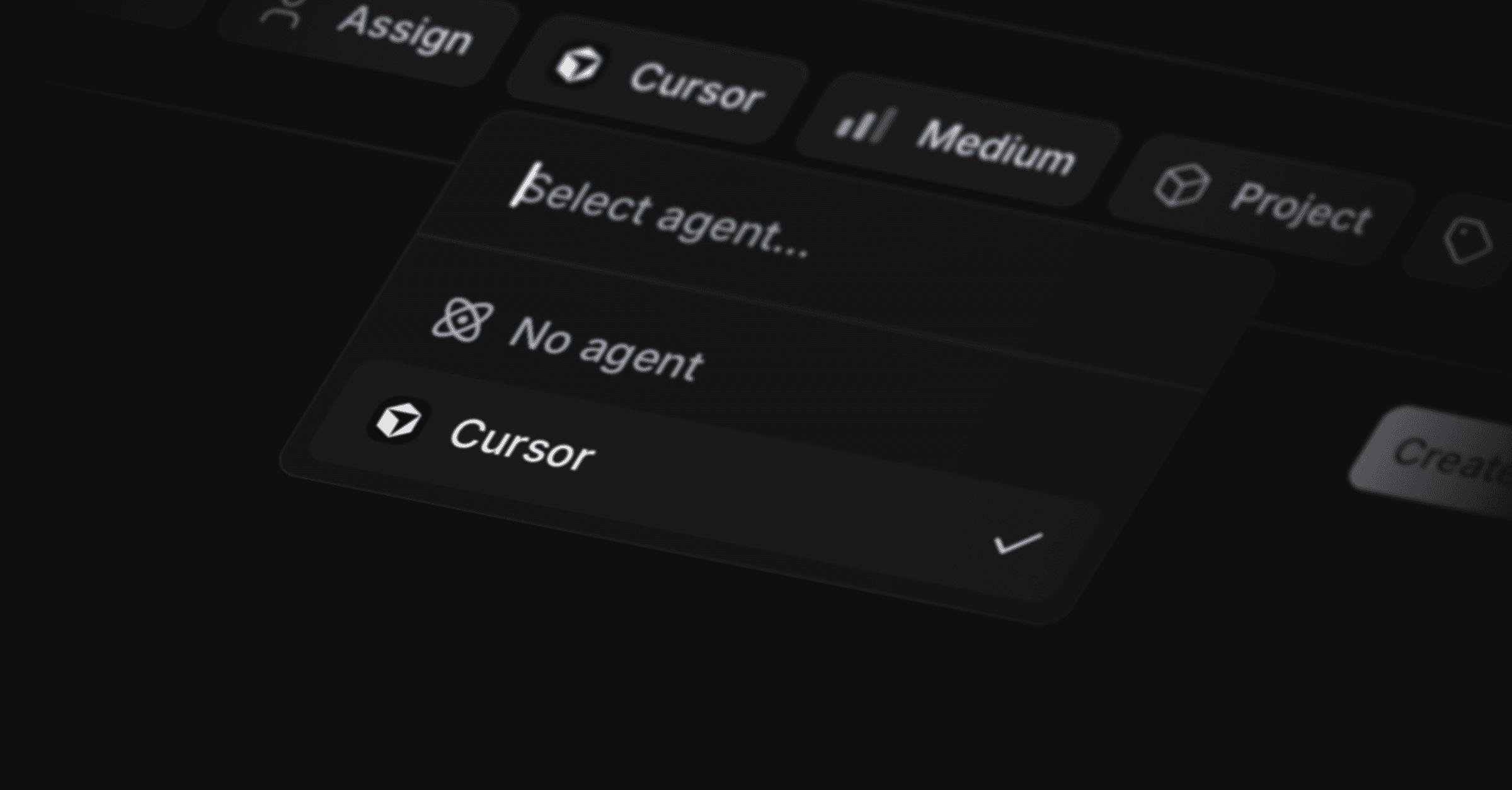
Cursor integration

The Cursor integration connects Cursor Cloud to Productlane so AI-powered coding agents can automatically resolve issues. It is in beta and marked with a "Beta" badge on the page.

Where to find it

Settings > Integrations > Cursor.

The integration requires the Pro plan or higher. The title shows a "Beta" badge, and a green "Connected" badge appears once Cursor is connected.

Controls on this page

Setup (API key input plus Connect)

Shown when Cursor is not connected. This section explains that you create an API key in your Cursor Dashboard under Integrations, and that your GitHub account must be connected in Cursor so agents can access your repositories. It contains:

  • API key: a password-style input (placeholder cursor_api_...) where you paste the Cursor API key.

  • Connect: the submit button that saves the key and connects Cursor. On the Free plan, this is replaced by an Upgrade button pointing to the Pro, Scale, Business, or Enterprise plans.

The "Cursor Dashboard" text is a link that opens https://cursor.com/dashboard in a new tab.

Repository (dropdown)

Shown after connecting, in the Configuration section. A searchable select of the GitHub repositories available to your connected Cursor account, listed as owner/name. It sets the repository that agents will work on. While repositories load, the placeholder reads "Loading repositories..."; if loading fails, an error line "Failed to load repositories. Please try again later." appears below the form. This setting saves automatically when changed.

Model (dropdown)

Shown after connecting. A select of the AI model used for coding agent tasks. It always includes a "Default" option, plus any models reported by your Cursor account. Choosing "Default" leaves the model unset so Cursor picks it. This setting saves automatically when changed.

Recording (dropdown)

Shown after connecting. A select for what the agent captures when it finishes a run. The options are:

  • Video

  • Screenshot

  • None

The default is Video. This setting saves automatically when changed.

Disconnect

A button shown when Cursor is connected. Clicking it opens a confirmation dialog titled "Disconnect Cursor Integration?". Confirming disconnects the integration. Your data remains saved; the integration stops working.

How to set up Cursor

  1. In the Cursor Dashboard under Integrations, create an API key. Make sure your GitHub account is connected in Cursor so agents can reach your repositories.

  2. Go to Settings > Integrations > Cursor.

  3. Paste the API key into the API key field and click Connect.

  4. In the Configuration section, pick the Repository the agents should work on.

  5. Choose a Model, or leave it on Default to let Cursor decide.

  6. Set Recording to Video, Screenshot, or None depending on what you want captured at the end of a run.

Each Configuration change saves on its own; there is no separate save button.

Notes

  • Status: beta.

  • Direction of work: Productlane sends issues to Cursor Cloud, where coding agents work on the configured GitHub repository and attempt to resolve them.

  • Cursor must have your GitHub account connected, otherwise agents cannot access repositories and the repository list may be empty.

  • The three Configuration selects auto-save on change, matching the dashboard's instant-save behavior.

  • Plan gating: Pro plan or higher.

PrevProductboard importer
NextAttio
Was this helpful?