Productlane shows up inside HubSpot. Sales and support read a customer's support history on their HubSpot record, and they can open a new thread from there.
Each morning, Productlane also writes the past day's conversations into HubSpot as notes. Your CRM keeps a record of every support conversation, with no export step.
Connecting needs the Scale plan or above, and a Member or Admin role.
Settings > Integrations > HubSpot.That is the whole setup. Notes and contacts start syncing on their own.
A contact or company record in HubSpot shows a Productlane panel. It has four tabs: Notes, Emails, Calls, and Meetings.
From the panel you can file a request for that customer. It becomes a thread in your Productlane inbox, and its status shows back in HubSpot.
Every morning at 07:15 (Berlin time), Productlane looks at the conversations from the past 24 hours. Each conversation becomes one note in HubSpot.
The note goes on the HubSpot contact with the same email address. When there is no contact, it goes on the company with the matching domain. Each note holds the messages with their sender and time, plus a link to the full thread in Productlane.
When a new contact with a company appears in Productlane, Productlane creates that contact in HubSpot. A daily sync also links your existing contacts and companies to their HubSpot records.
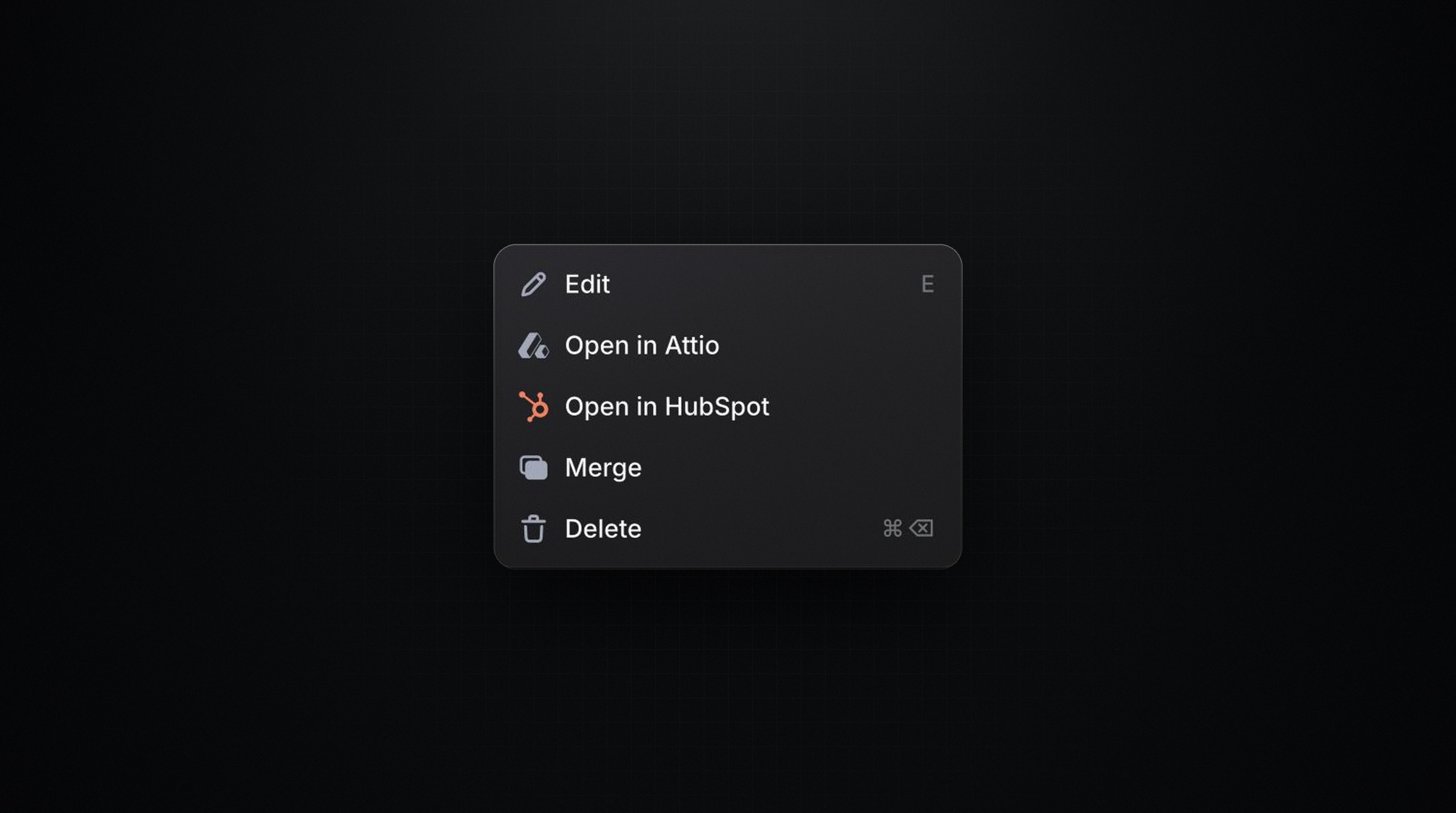
Once a person or company is linked, Open in HubSpot appears on their page in Productlane.
Connections made before daily notes existed lack the permission to write notes. If yours is one of them, the HubSpot settings page shows a Reconnect banner. Click Reconnect and approve the new permission in HubSpot, and notes start the next morning.
Only an Admin can disconnect. Notes already written stay in HubSpot, and new conversations stop syncing. Your Productlane data stays as it is.