
Docs / Channels
Microsoft Teams
Sync conversations from Microsoft Teams into Productlane.

Overview
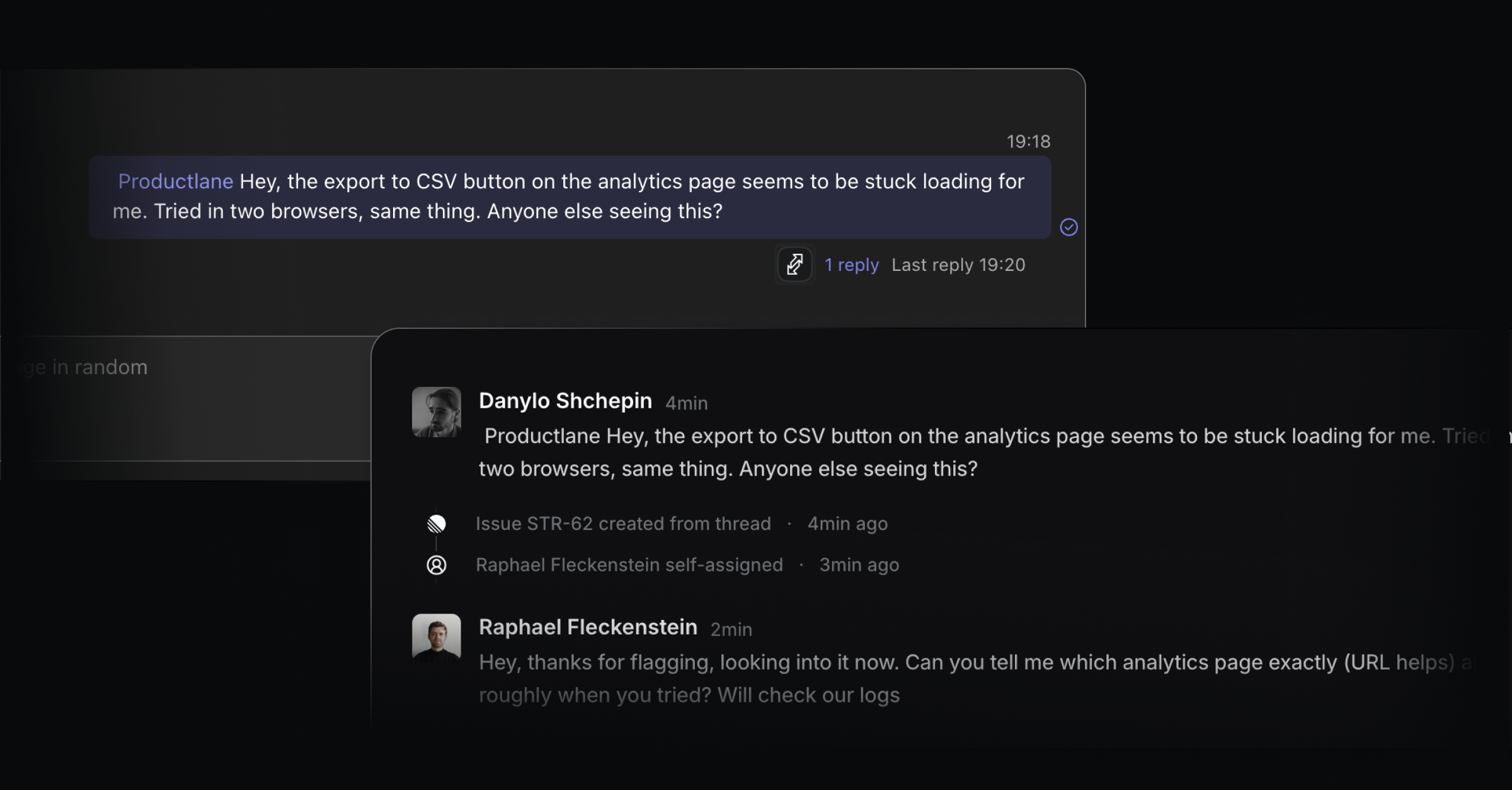
The Microsoft Teams integration brings Teams conversations into Productlane. Once the Productlane bot is added to a team, channel messages and chats are automatically converted into Productlane threads. You can reply from Productlane, and your reply appears back in Teams as a threaded message, with your name and avatar. Files and images sync both ways.
Like the Slack integration, you can link Teams threads to Linear issues, snooze and close them from your Productlane inbox, and collaborate internally with side notes - without ever leaving Productlane.
Requirements
A Productlane workspace on the Scale plan or higher.
A Microsoft 365 tenant where you (or your IT admin) can grant admin consent and upload custom Teams apps.
How to install Microsoft Teams
The setup has two parts: connecting your Microsoft tenant to Productlane, and uploading the Productlane Teams app into your workspace.
1. Connect your Microsoft tenant
In Productlane, go to Settings → Integrations → Microsoft Teams and click Connect. You'll be redirected to Microsoft to grant admin consent for the Productlane app. After consent, Microsoft sends you back to Productlane and your tenant is linked.
2. Download and upload the Productlane Teams app
From the same Teams integration page, click Download Teams App (.zip) to grab the Productlane app package.
In Microsoft Teams:
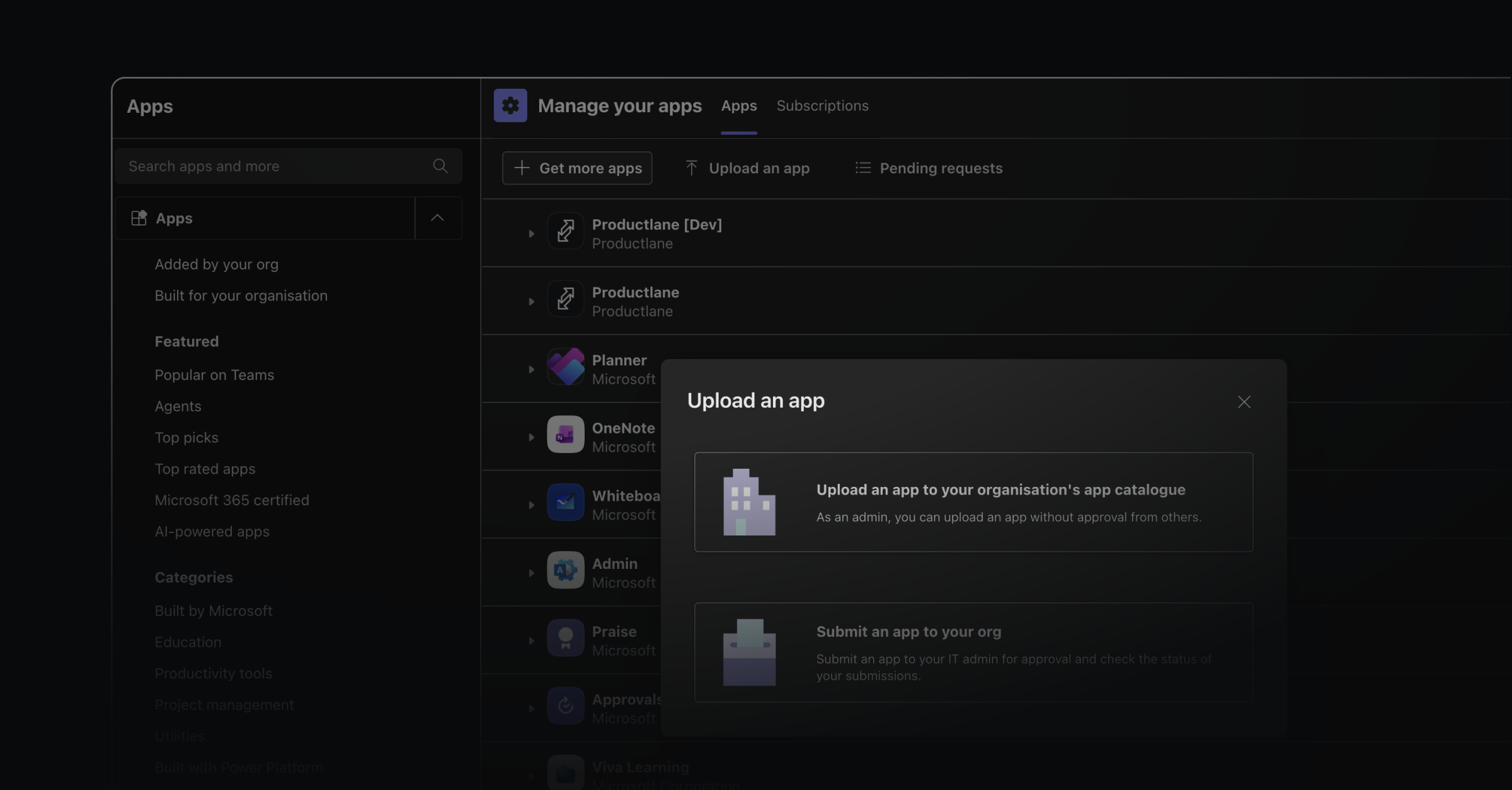
Open Apps in the left sidebar.
Click Manage your apps → Upload an app → Upload a custom app.
Select the
.zipyou just downloaded.
3. Add the Productlane bot to a team
Open the team you want to sync, click the … menu next to the team name, and choose Manage team → Apps → Add an app. Search for Productlane and add it.
Or, from any channel or chat, type @ in the message box, select Get agents and bots, and pick the Productlane app.
4. Start syncing
Once the bot is in a team, any new channel message will be picked up by Productlane and turned into a thread. The first time the bot sees a message in a thread, it subscribes to it — every subsequent reply in that Teams thread is appended to the same Productlane thread automatically.
For 1:1 and group chats, @mention @Productlane once to bring the bot in. After that, the chat is synced like a channel.
Notes and limitations
The integration uses Microsoft's Bot Framework + Graph API. The Productlane bot must be explicitly added to each team you want to sync - it does not auto-discover teams.
Internal notes added in Productlane stay in Productlane and are never sent to Teams.
If you reconnect Teams later (e.g., after a tenant change), the existing settings are updated in place - you don't need to re-import past conversations.
Troubleshooting
"Failed to connect" after admin consent. Check that the user clicking Connect in Productlane is the same user who completes the Microsoft consent flow. The state parameter is bound to a workspace, and the callback rejects mismatches.
Bot doesn't pick up messages. Make sure the Productlane app was added to the specific team or chat, not just installed in the tenant. In channels, the bot starts syncing on the first message after it's added.
Outbound files don't appear in Teams. The bot needs SharePoint write access for the channel. If permissions were revoked or the tenant policy blocks app uploads to SharePoint, files fall back to a clickable link in the message.
Was this helpful?