
Overview
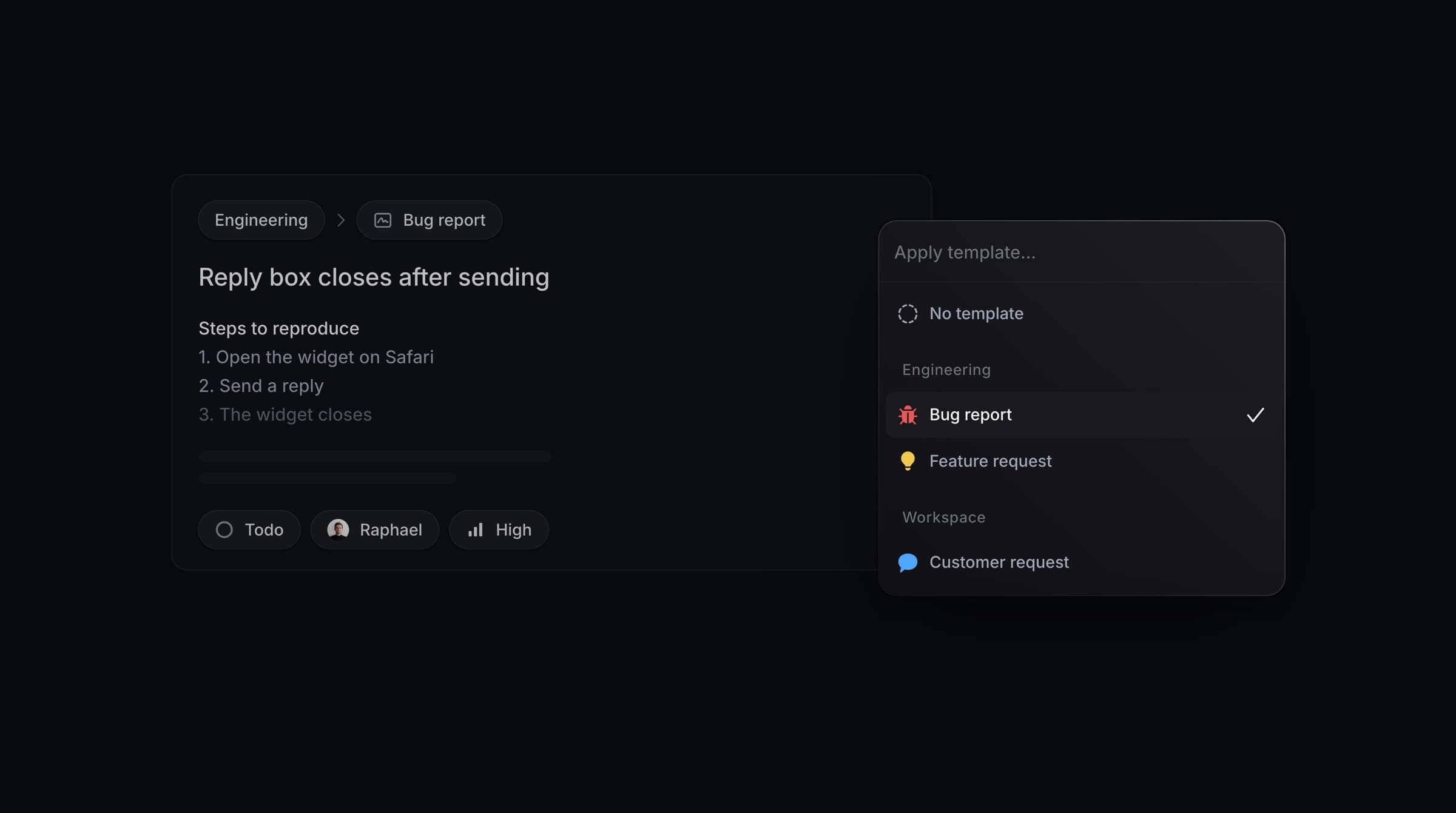
When you create a Linear issue from Productlane, you can apply one of your Linear issue templates to prefill the new issue. Templates live in Linear, so the picker always matches the templates your team manages there.
Before you start
Connect Linear from Settings → Integrations → Linear.
Make at least one Linear team visible in Productlane. The picker lists templates for your visible teams, together with workspace-wide templates.
Create the templates themselves in Linear, under Linear's template settings. Productlane reads them; it does not create them.
Apply a template
Open the create issue dialog from a thread, from feedback, or from the Issues screen.
Next to the team selector, click Template.
Browse the list. Templates are grouped by team, with workspace-wide templates under a Workspace heading at the end. Type to filter by name.
Select a template to apply it. The button then shows the template's name.
To clear the selection, open the picker and choose No template.
Templates are offered when you create a new issue. Converting an existing tag or opportunity into an issue skips the template picker.
Default template for a team
In Linear, a team can have a default template configured for its members. When the create issue dialog opens with that team preselected, Productlane automatically applies that team's default template, the same way Linear does for its own members.
The default template only applies automatically when no template has already been picked or set for the dialog.
You can still override it. Open the Template picker and choose a different template, or pick No template to clear it.
Switching the team selector to a different team applies that team's default template instead, following the same rule.
This automatic behavior does not apply when converting an existing tag or opportunity into an issue.
Set or change a team's default template from Linear's own team settings; Productlane just applies whatever is configured there.
What a template prefills
Applying a template fills in the fields it defines:
Priority
Title. A template title is appended to whatever you have already typed, so your own wording stays.
Description. When you open the dialog from a thread, Productlane pre-fills the description with the conversation. If you have not typed anything of your own into that description yet, applying a template replaces it with the template's description. If you already added your own text, the template's description is appended to it instead, so your own writing stays.
Status (workflow state)
Assignee
Agent. If the template delegates to an agent such as Cursor, that agent is preselected.
Project
Labels
Productlane also passes the template through to Linear when the issue is created, so any parts of the template that go beyond these fields are applied by Linear itself.
Templates for another team
Priority, title, and description apply whichever team is selected. Status, assignee, project, and labels belong to a single team.
If you pick a template that belongs to a different visible team, Productlane switches the team selector to that team. It then applies the template's status, assignee, project, and labels once that team's data has loaded.